























BetaWorks in your browser

Made forstudents

Notes, documents, spreadsheets, whiteboards, a calendar and team chat, all in one app. You don't need a different tool for each job.
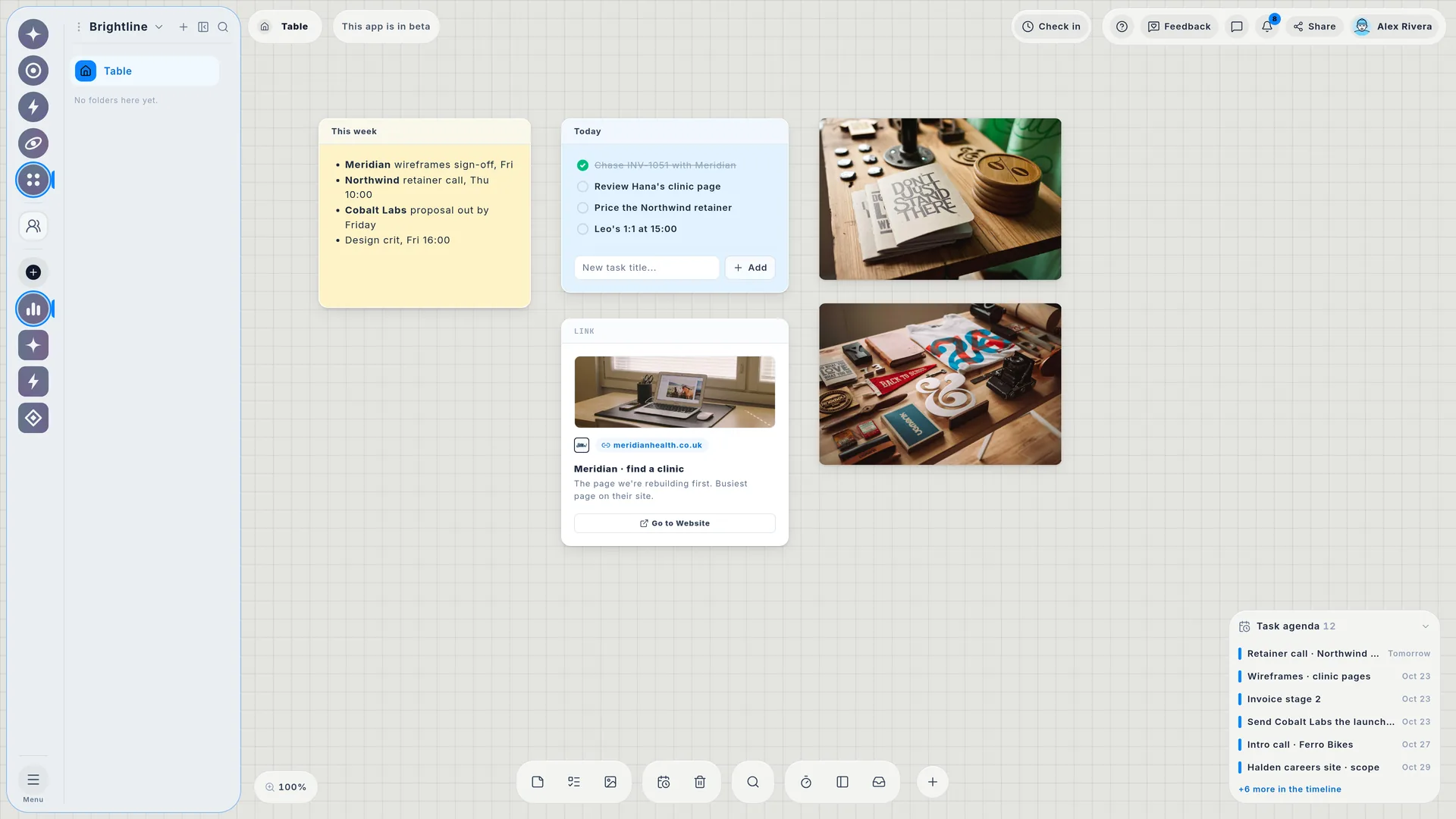
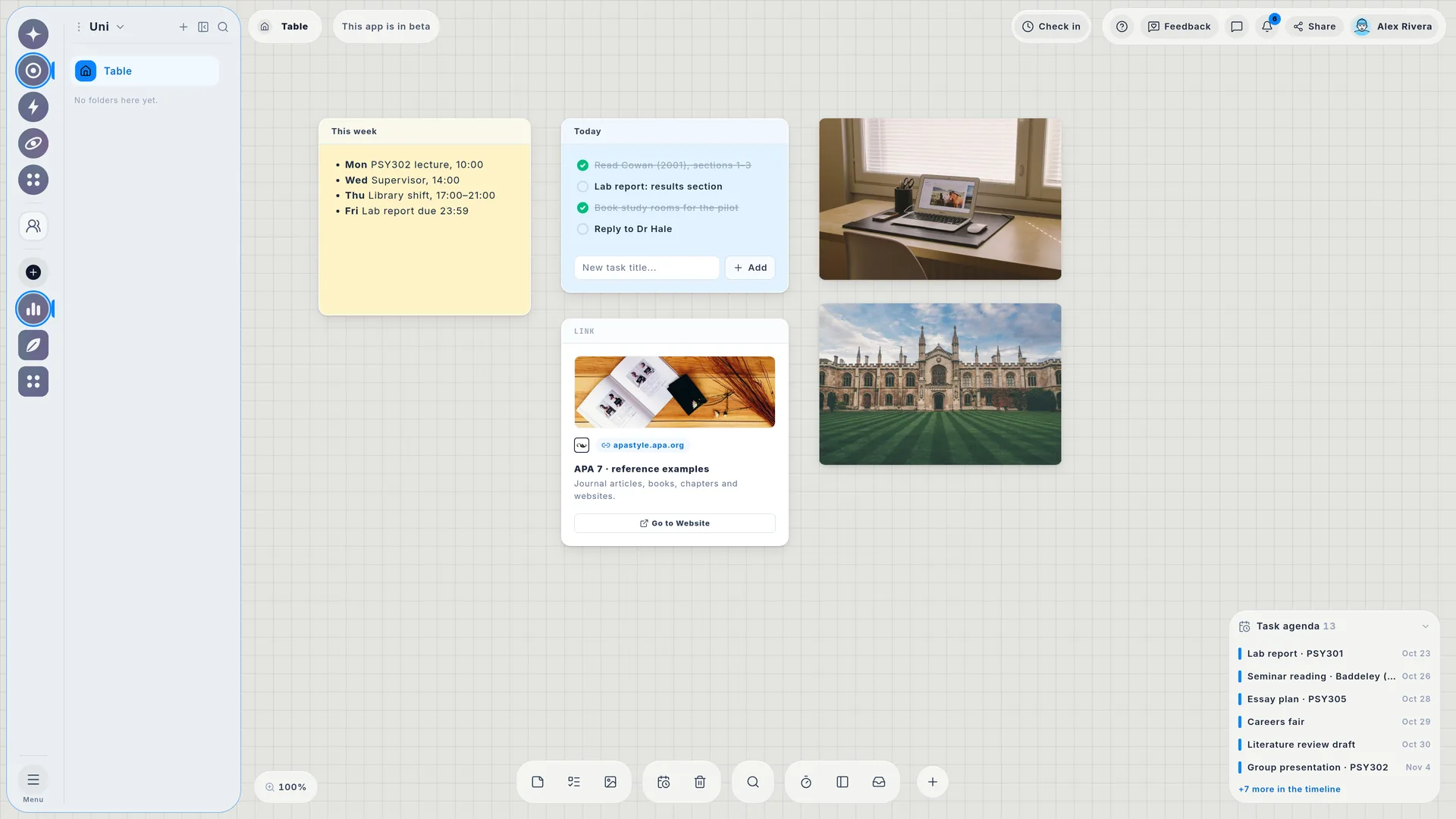
A Wailyspace Table: this week's notes, today's to-dos, a client link and photos, with the task agenda in the corner.
BoardsPagesCalendarGanttWorkload 
ChatCheck-inTimeSharingStickers 

WHO IT'S FOR

Example: a psychology student

Students

Plan your studies, write your dissertation and know your grades.

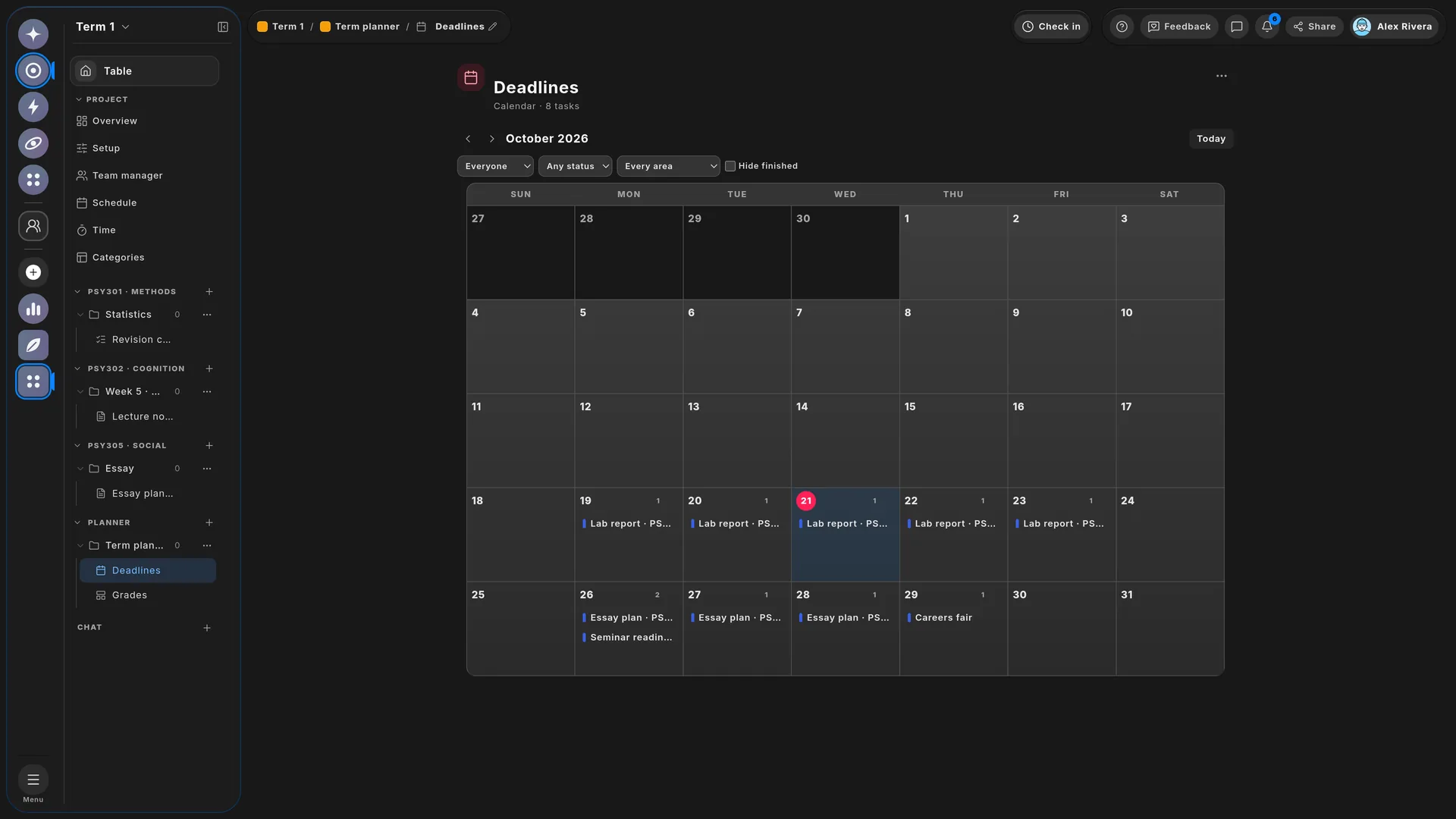
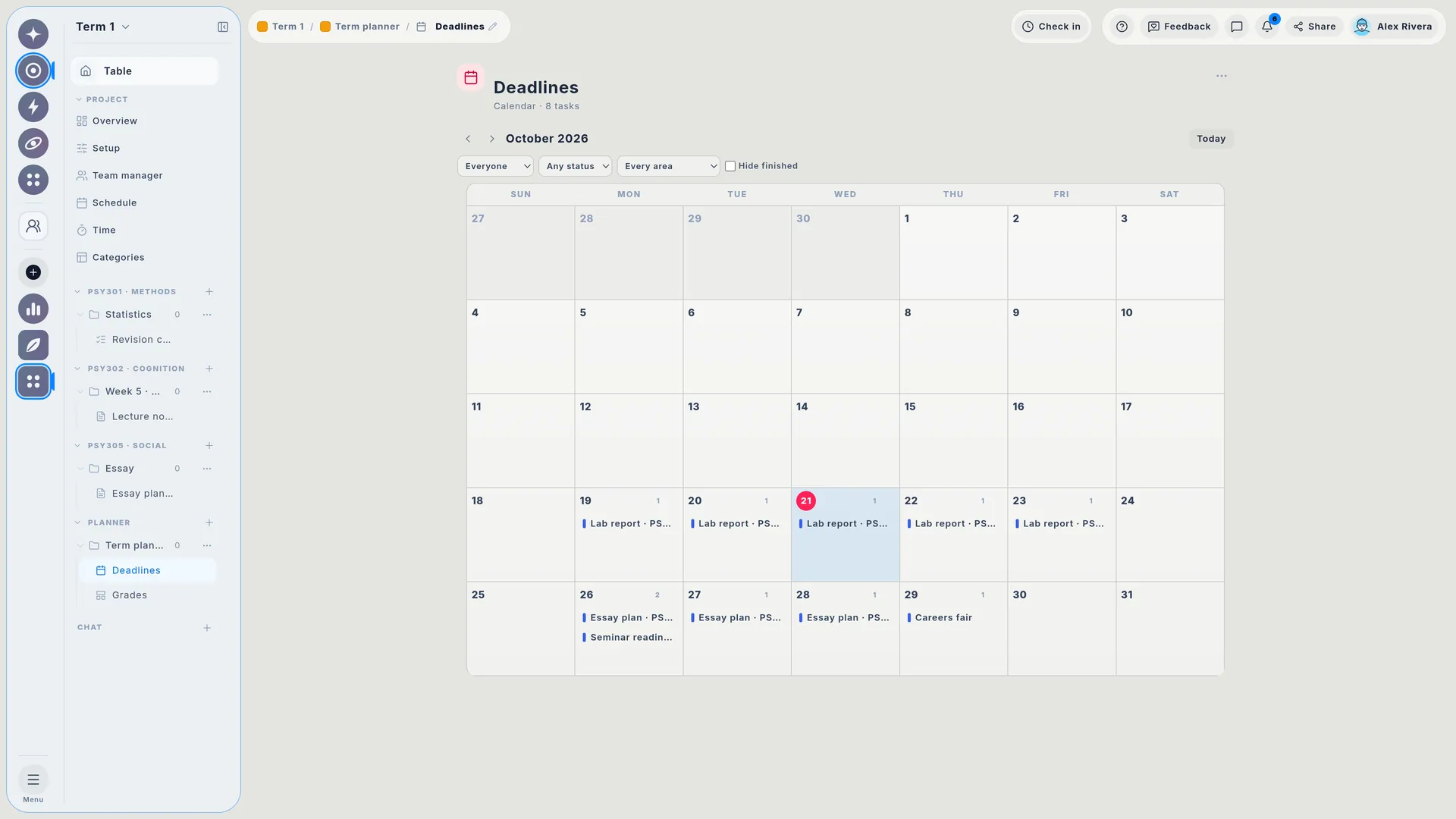
Students, Never miss a deadline: Each deadline shows on its day. Today is marked, so you know how much time is left. Show one module at a time, or hide work that is done.

Tap a number to see where it is on the screen

Open the full picture

How it works

A quick look inside a project.

These are the main parts of a project. You can see every tool in the features below.

01 / 05 · Boards

A big board for your ideas.

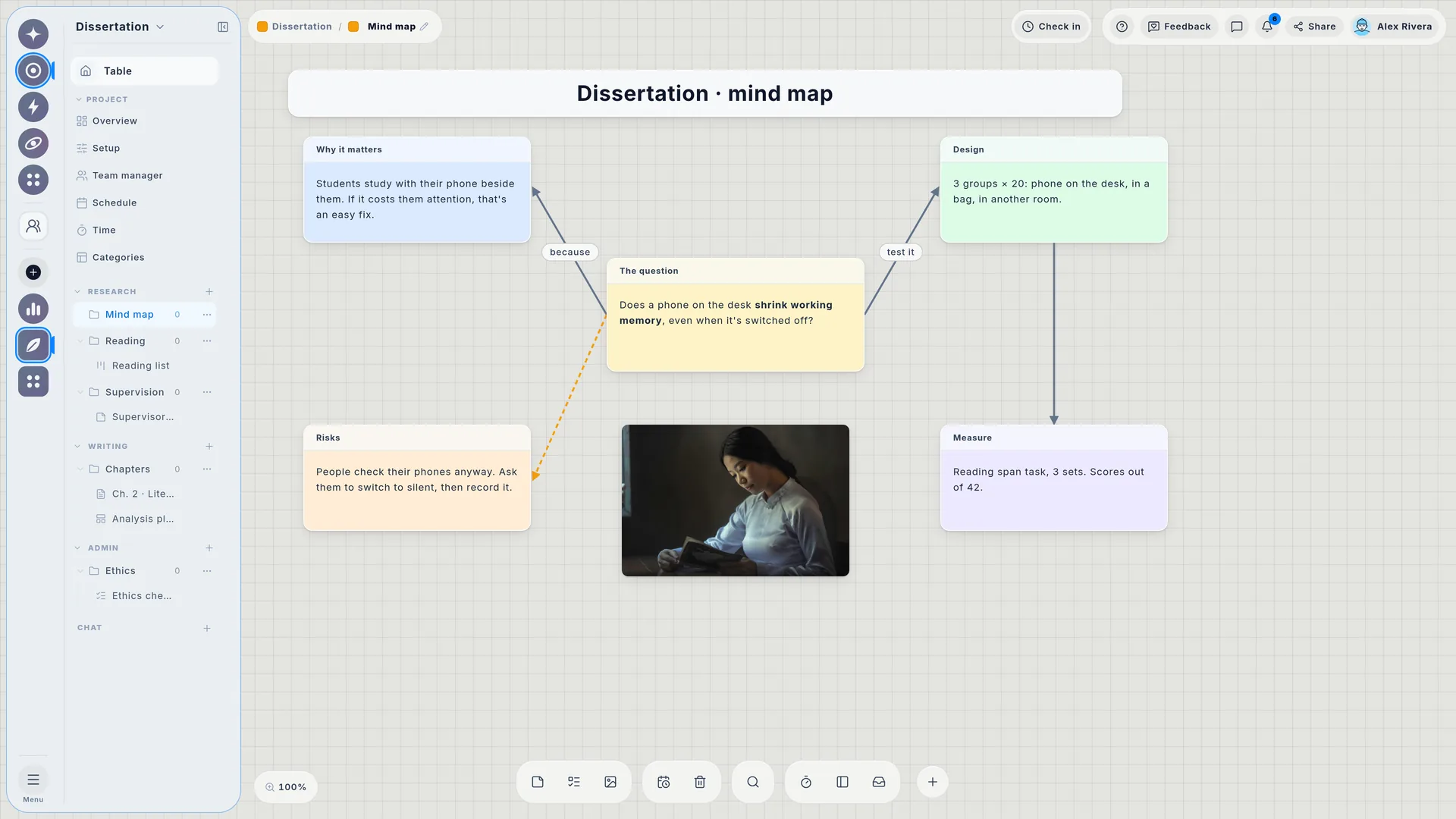
Put notes, pictures, lists and links anywhere on the board. Connect ideas with arrows. Sort them into folders.

  • Notes
  • Pictures
  • Arrows
  • Folders
  • Links
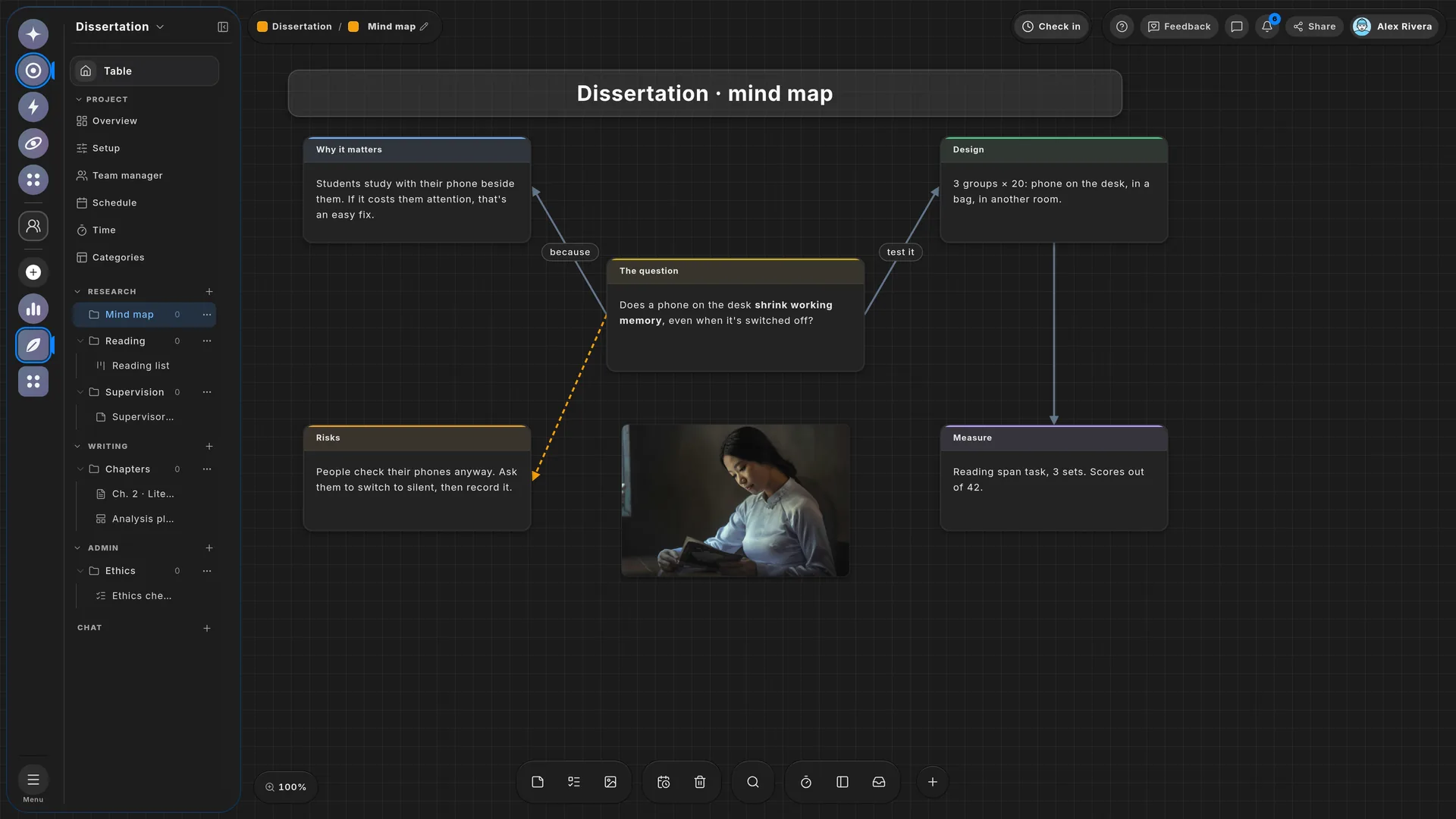
A student's dissertation mind map: the research question joined by labelled arrows to the design, the measure, the risks and why it matters.

02 / 05 · Project map

See the whole project on one map.

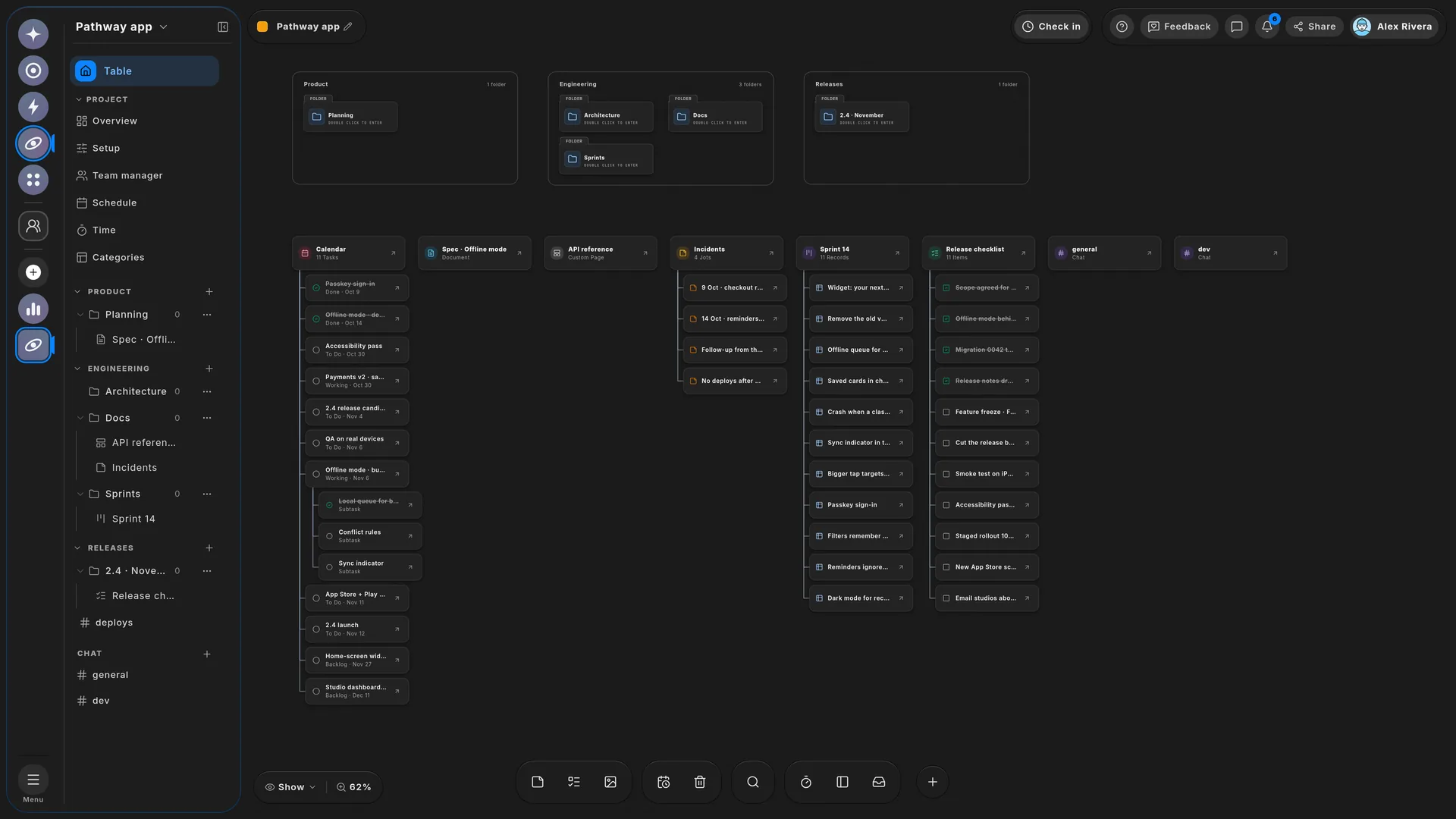
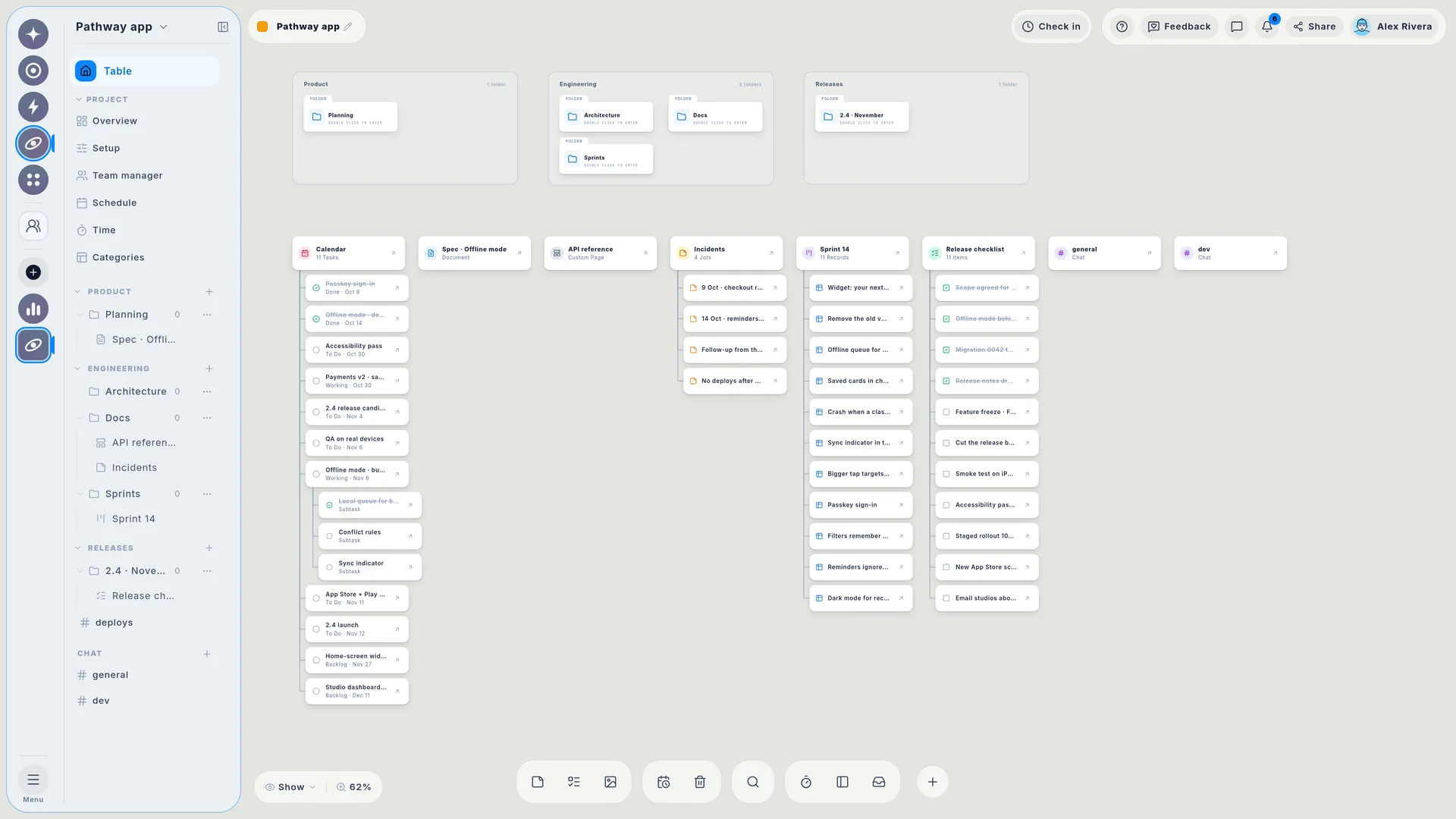
See everything in your project on one screen: every folder, every page and every task.
  • Categories
  • Folders
  • Pages
  • Tasks
A product team's project Table zoomed out: folders for product, engineering and releases, and every page with its contents beneath.

03 / 05 · Pages

Documents, sheets and more.

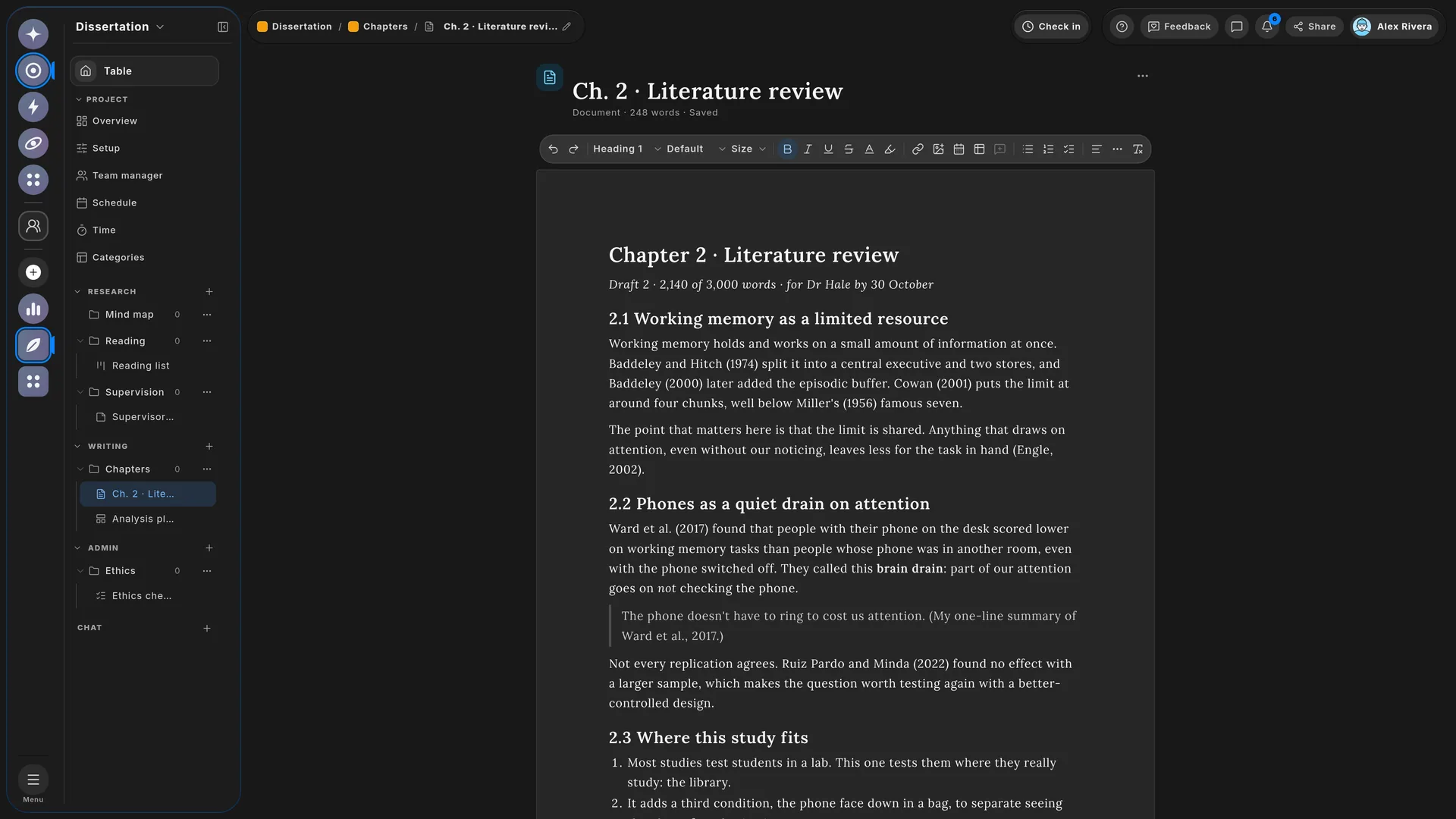
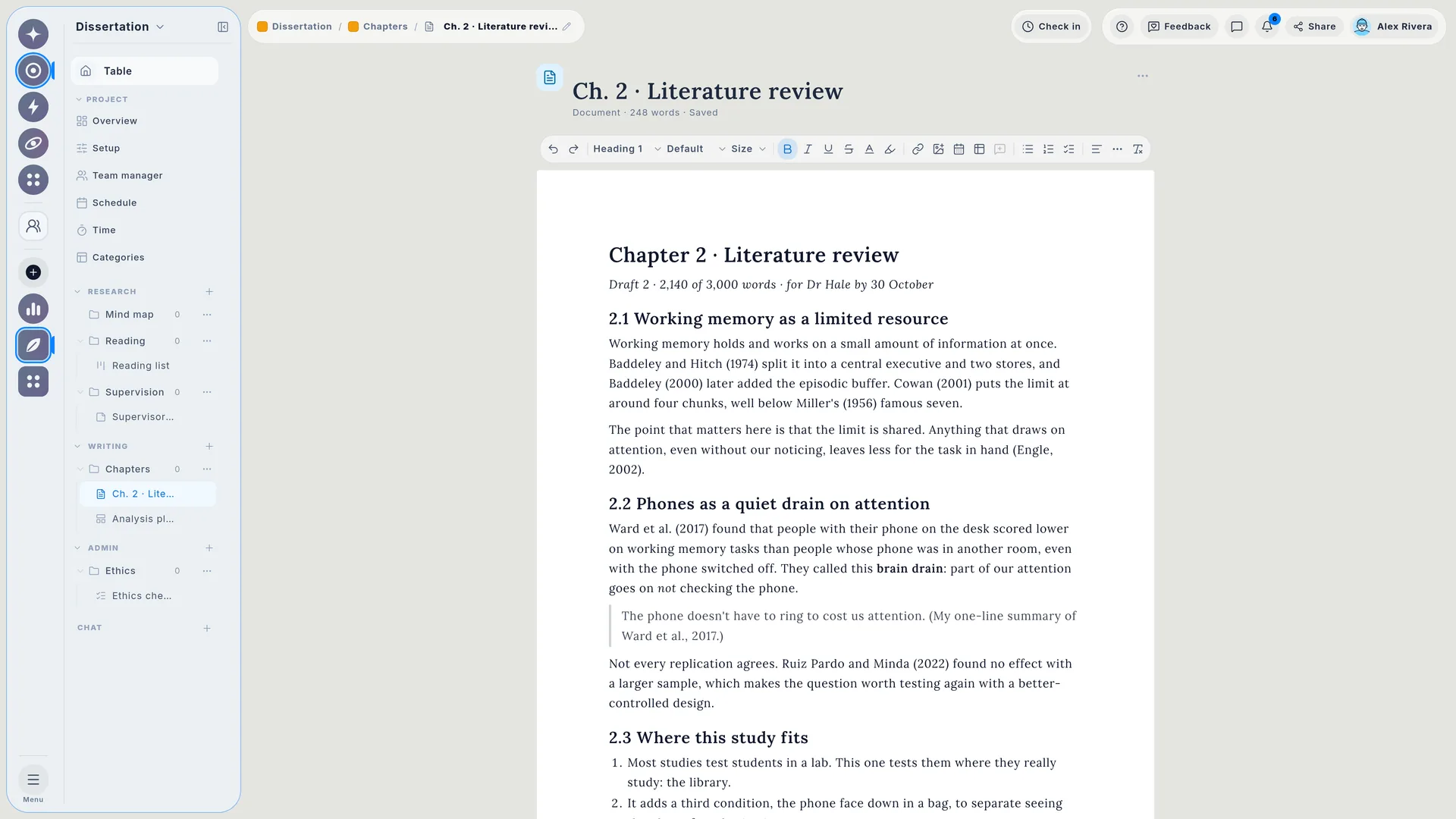
Write documents that look like paper. You can also make lists, tables, spreadsheets, charts and more.
  • Documents
  • Checklists
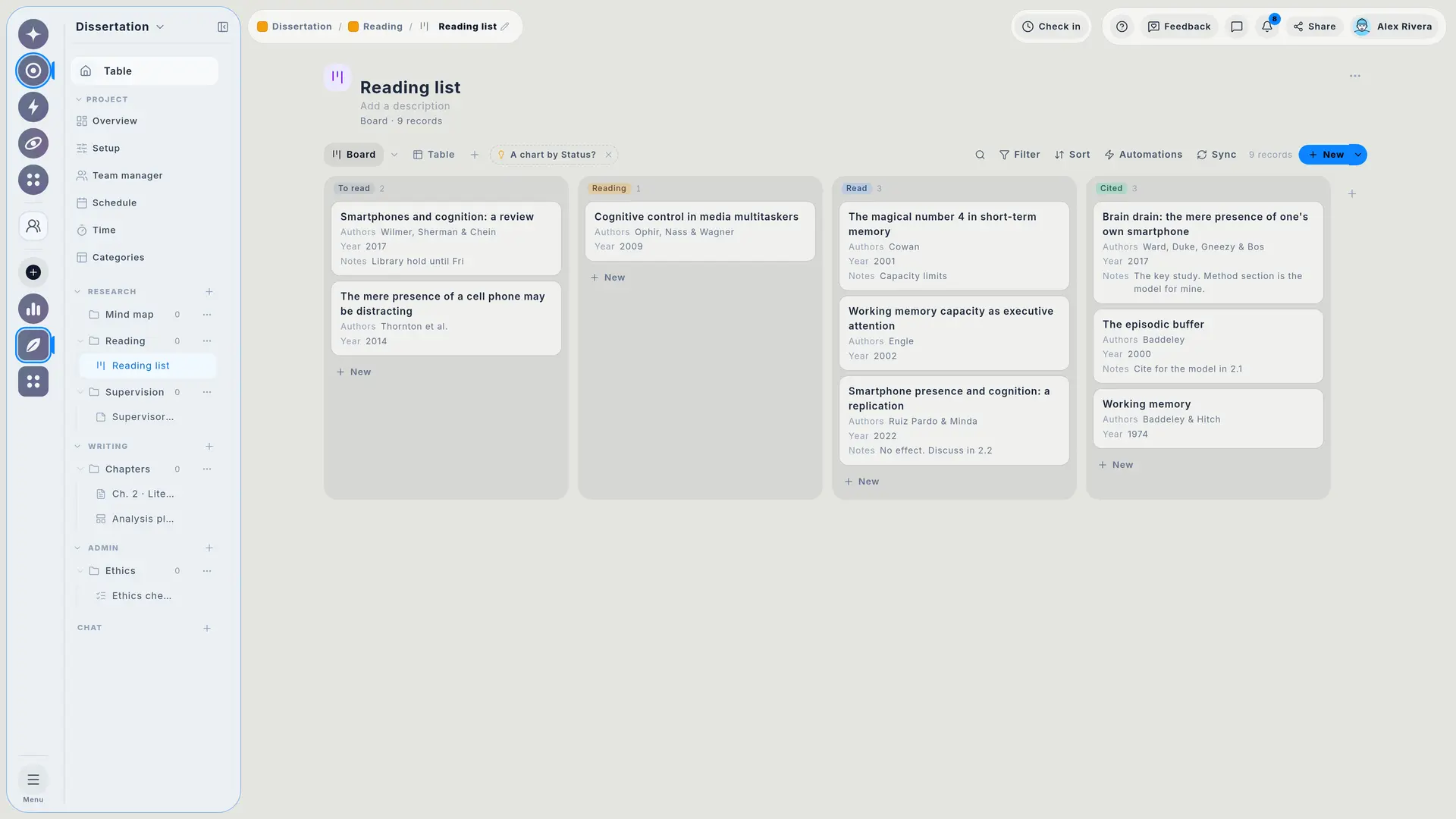
  • Databases
  • Sheets
  • Dashboards
A dissertation's literature review written as a document in Wailyspace, with the project's folders in the sidebar.

04 / 05 · Calendar

All your deadlines on one calendar.

Every task with a date goes on the calendar. You can also see your tasks on a timeline, or see how busy each person is.
  • Calendar
  • Gantt
  • Workload
A student's October on the calendar: the lab report, seminar reading, an essay plan and the careers fair.

05 / 05 · Agenda

See what's due next, every day.

Your home screen shows what is due soon from all your projects. So you never miss a deadline.
  • Agenda
  • Due dates
  • Every project
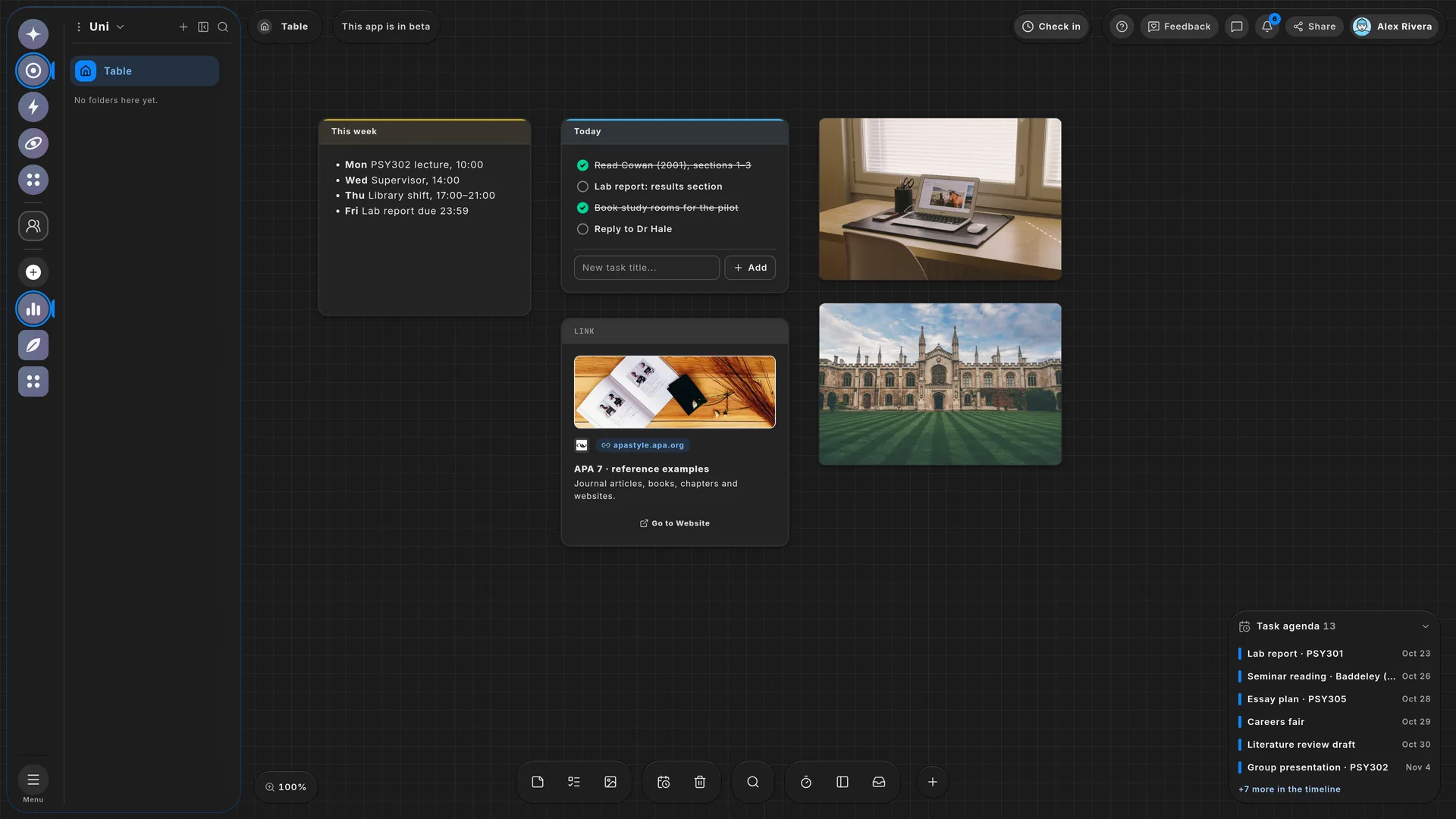
A student's home screen. The task agenda in the corner lists what is due next: a lab report on 23 October, seminar reading, an essay plan, the careers fair, a literature review draft and a group presentation.

EVERYTHING IT CAN DO

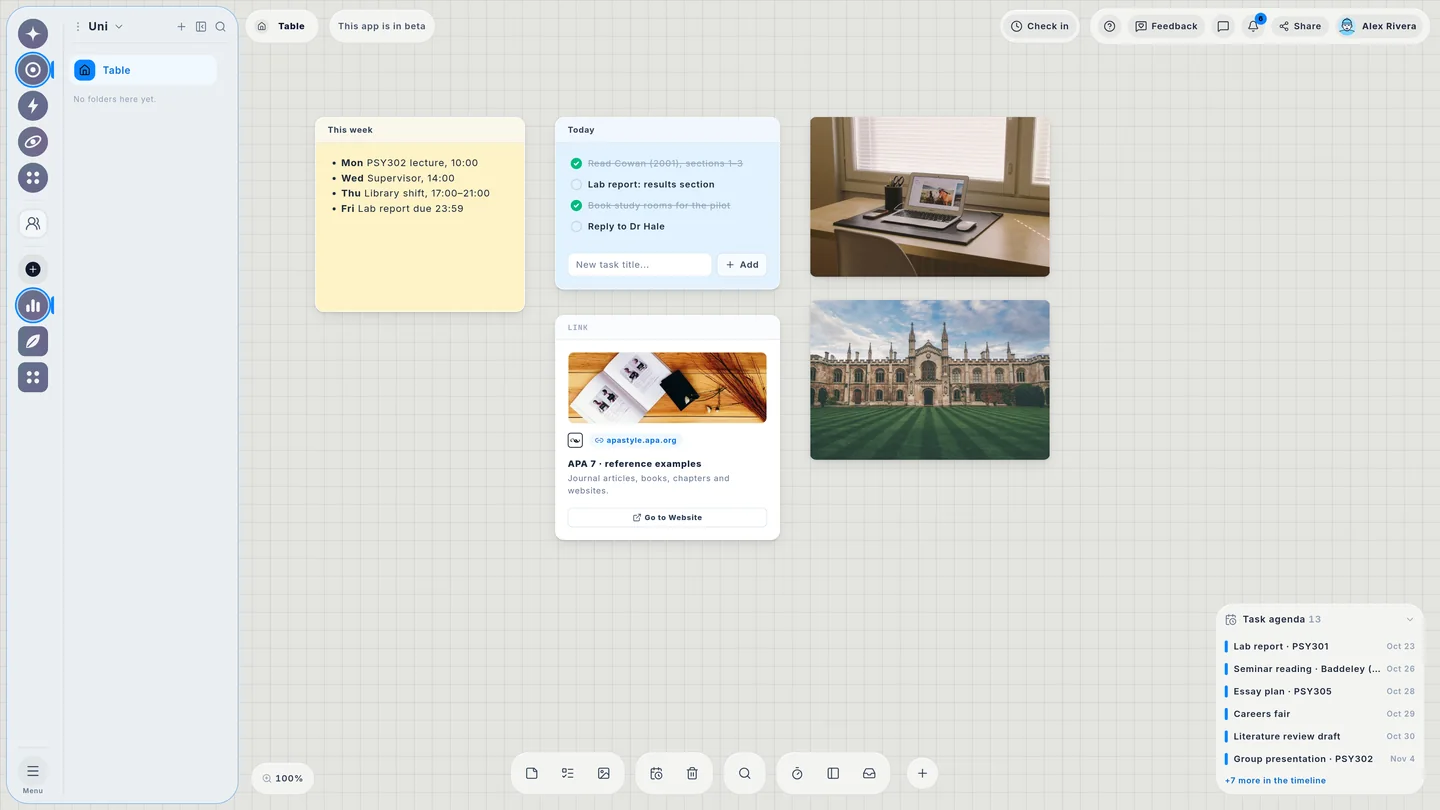
A student's Table: this week's lectures and deadlines, today's to-dos, a desk photo, the campus and the task agenda.

Your home screen

The Table is your home screen. Put notes, to-dos, pictures and links on it. It also lists what is due soon.

Example from a psychology student's workspace

MORE TOOLS

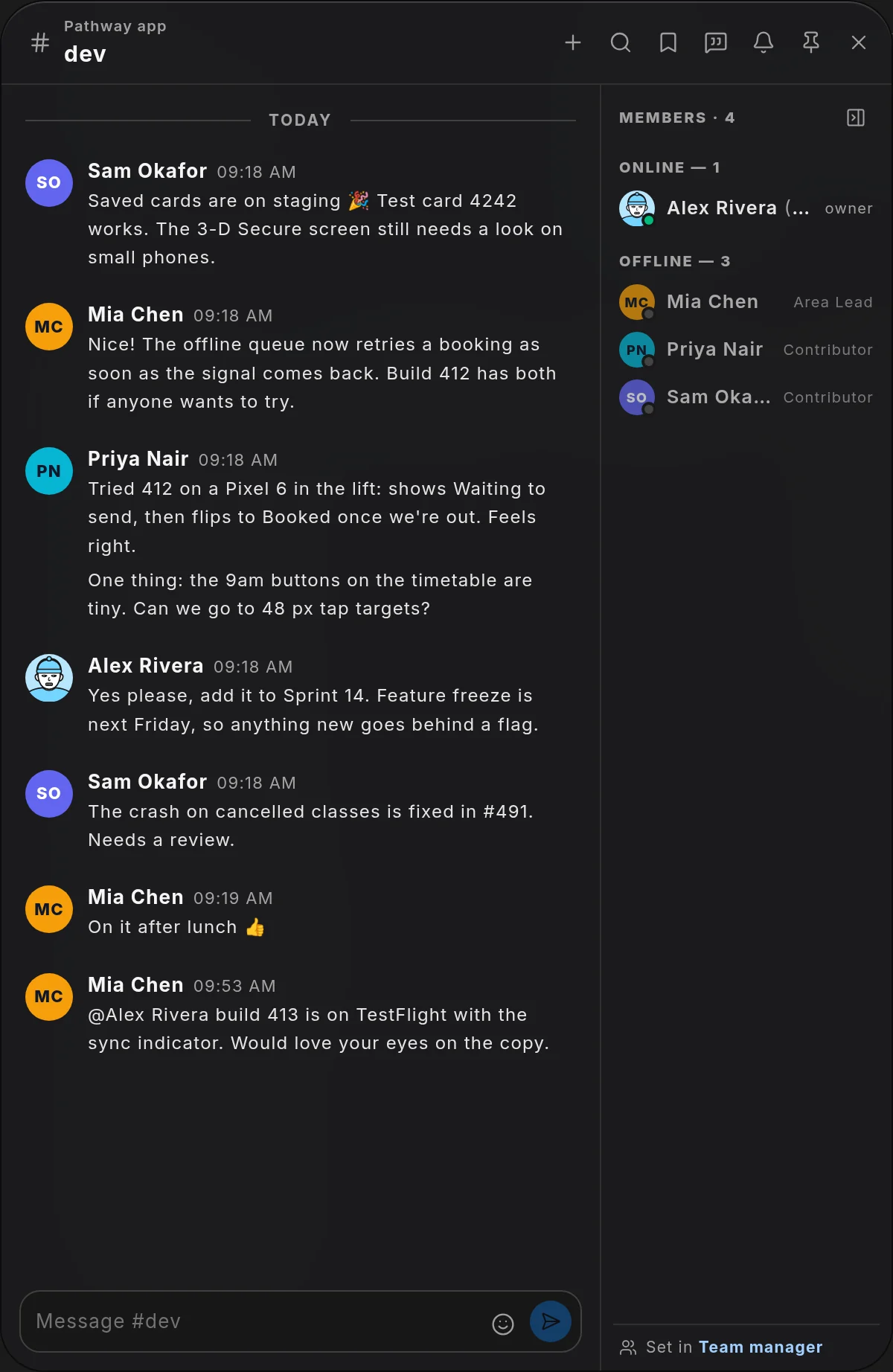
Jess Moreno 07:02

Morning! Pastries are out and the coffee machine is ready.

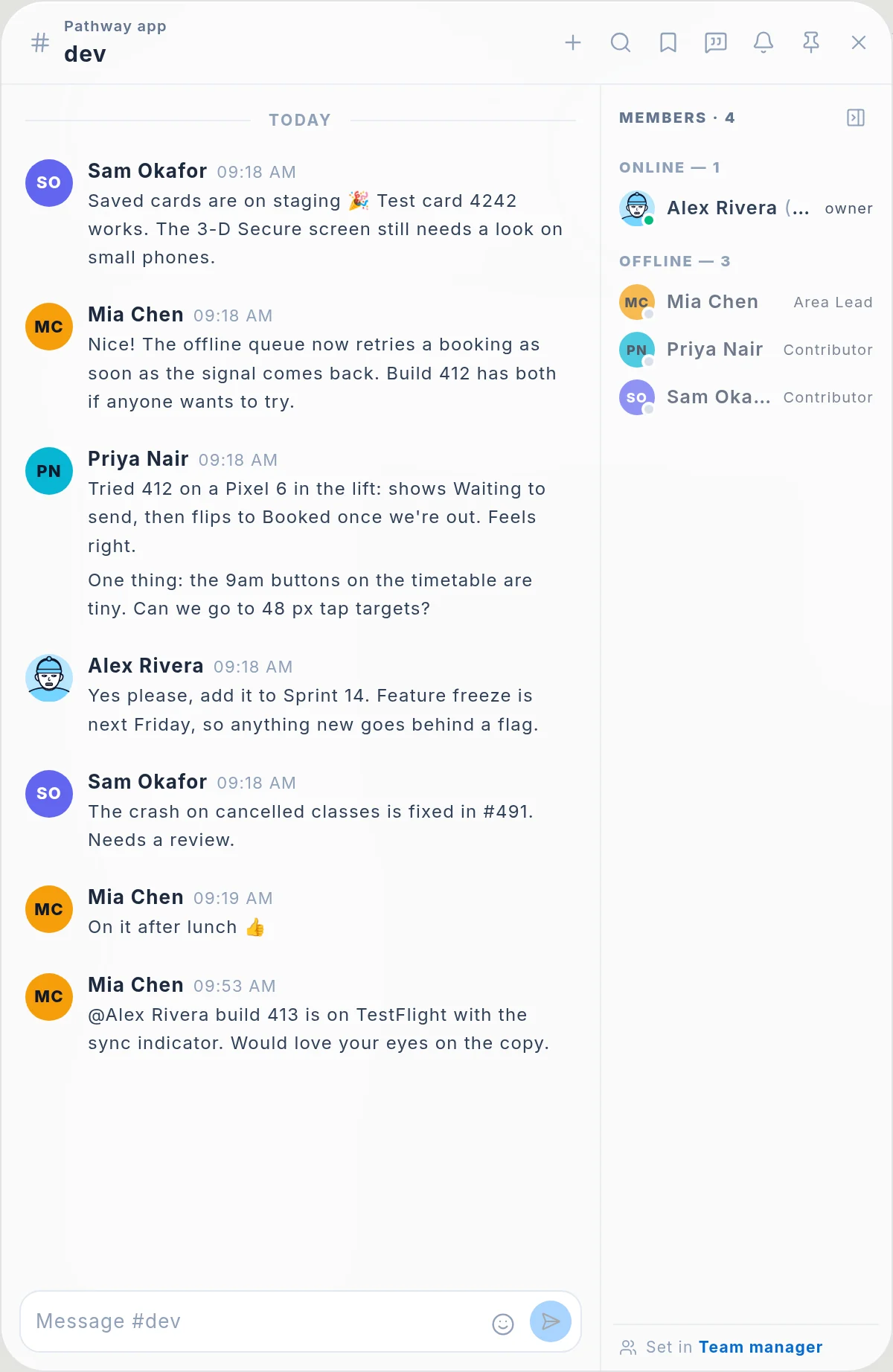
Chat in every project

Chat channels for each project, with @mentions, pinned messages and replies.
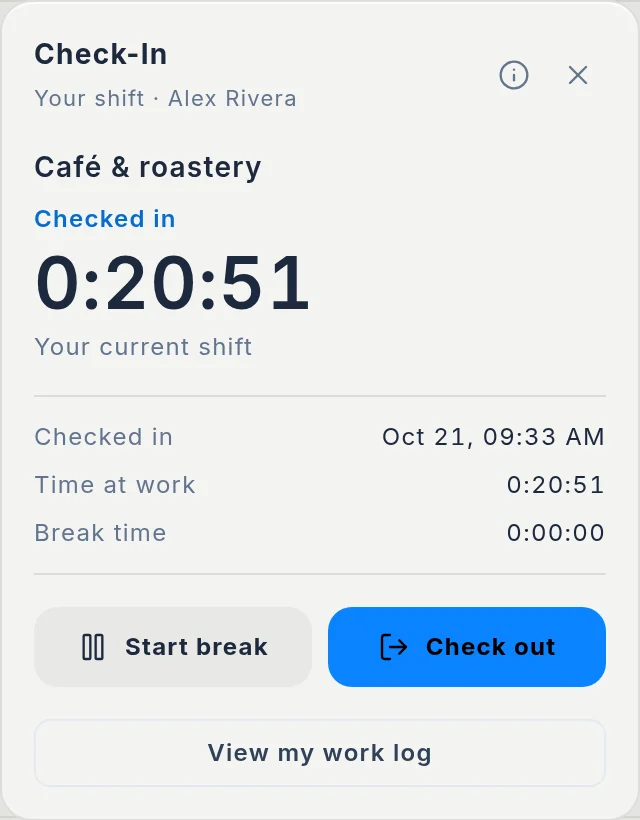
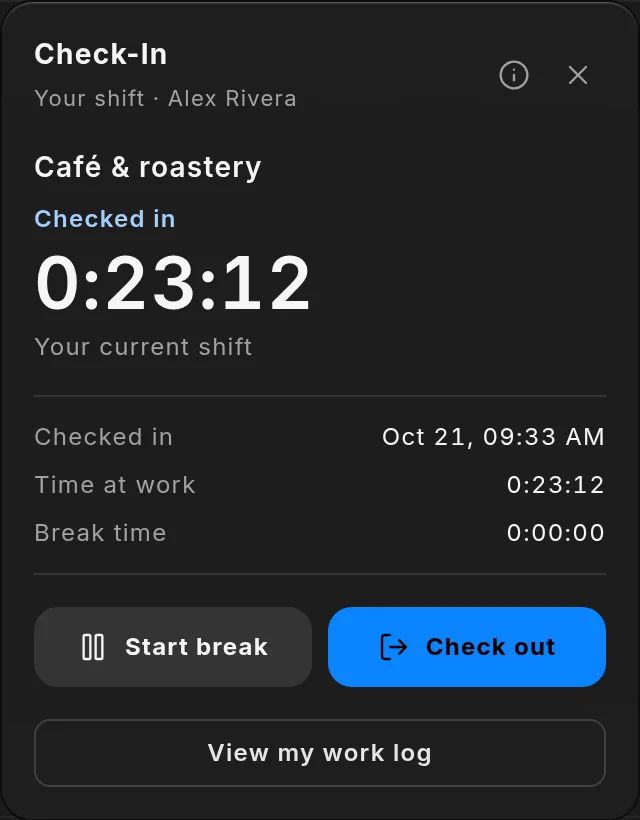
The check-in card with a shift running at a café.

Check in, check out

Check in when you start and check out when you finish. Your hours are saved for you.
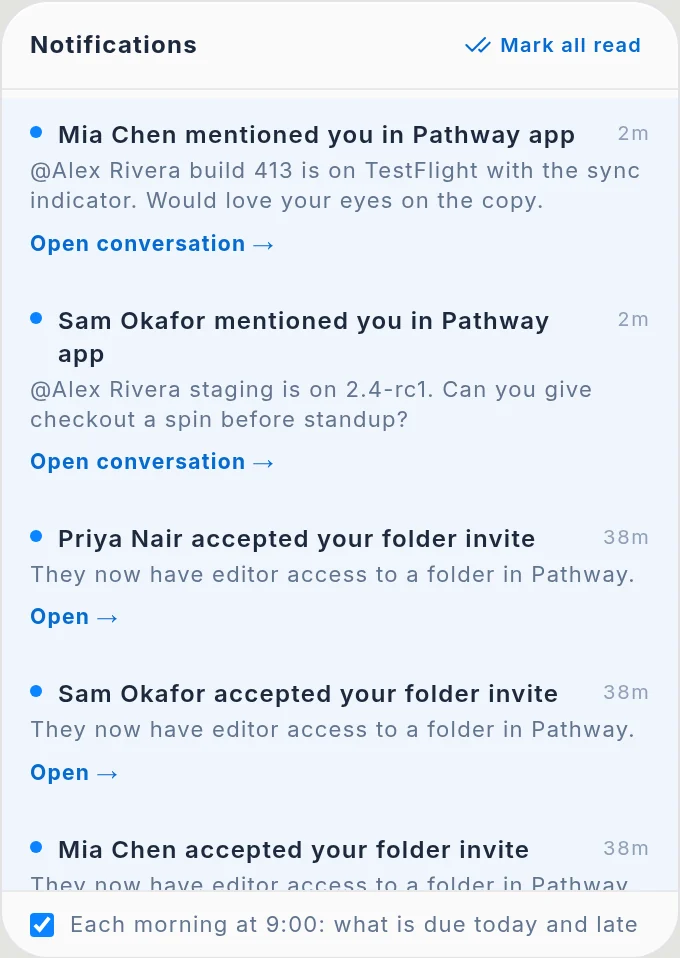
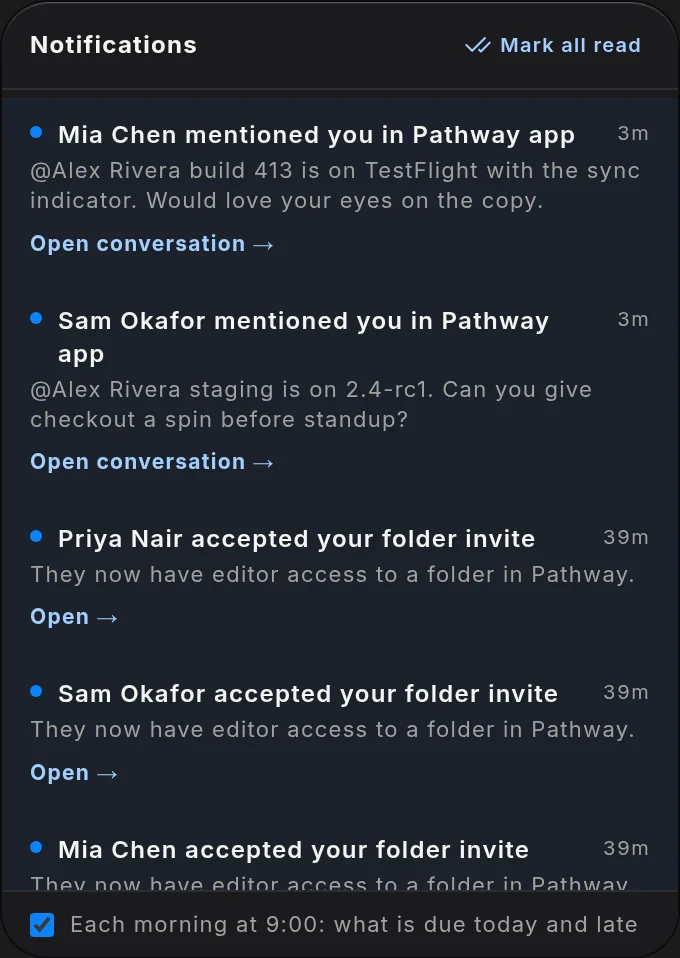
The notifications list: two chat mentions from teammates and accepted invites.

Notifications

See when someone mentions you, finishes a task or accepts an invite. Click to go straight there.
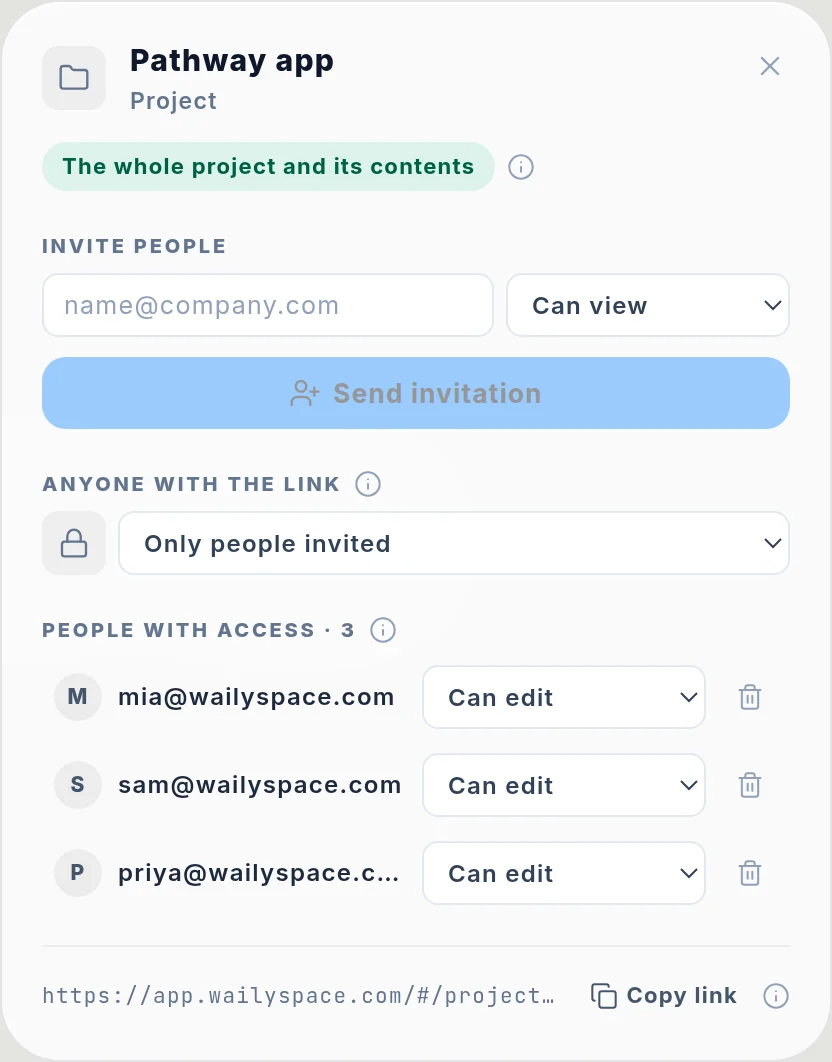
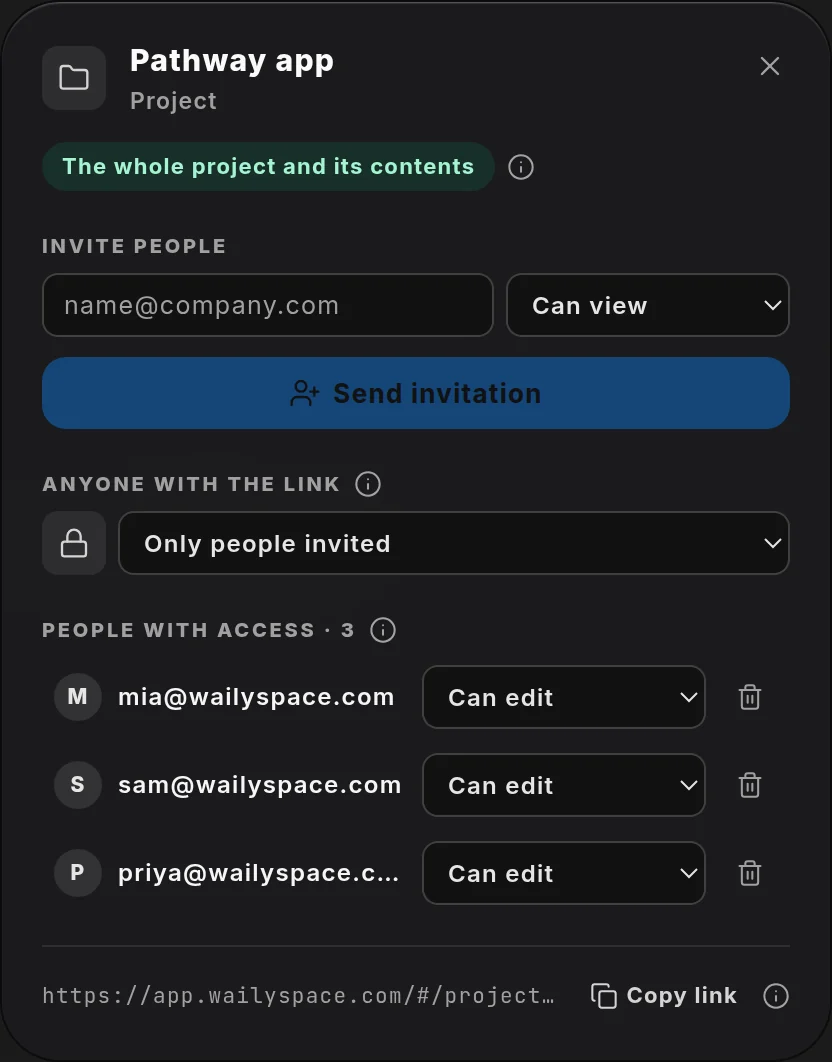
The share dialog for a project: invite by email, link access and the three people who can edit it.
Invited

Share only what you want

Share one page, one folder or a whole project. Choose what each person can do.

A toolbar on every board

Add notes, to-dos, pictures, dates and a timer from the toolbar at the bottom of every board.

DocumentChecklistDatabaseSheetGalleryTrackerDashboardDirectoryCalendarNotes

A page for every kind of work

Make a document, checklist, database, spreadsheet, gallery, tracker or dashboard from one menu.

FACES AND STICKERS

Drawn faces
0
Stickers
0
Sticker sets
0
A drawn face from the Wailyspace face builder, number 1
A drawn face from the Wailyspace face builder, number 2
A drawn face from the Wailyspace face builder, number 3
A drawn face from the Wailyspace face builder, number 4
A drawn face from the Wailyspace face builder, number 5

Hover over a face · 48 to choose from

A drawn face at the centre of the sticker orbit

Drag the Yay! sticker, or peel its corner

COLOURS

light

dark

Stone·#E4E4E0·light mode

Settings › Appearance › Canvas background

Light · Stone
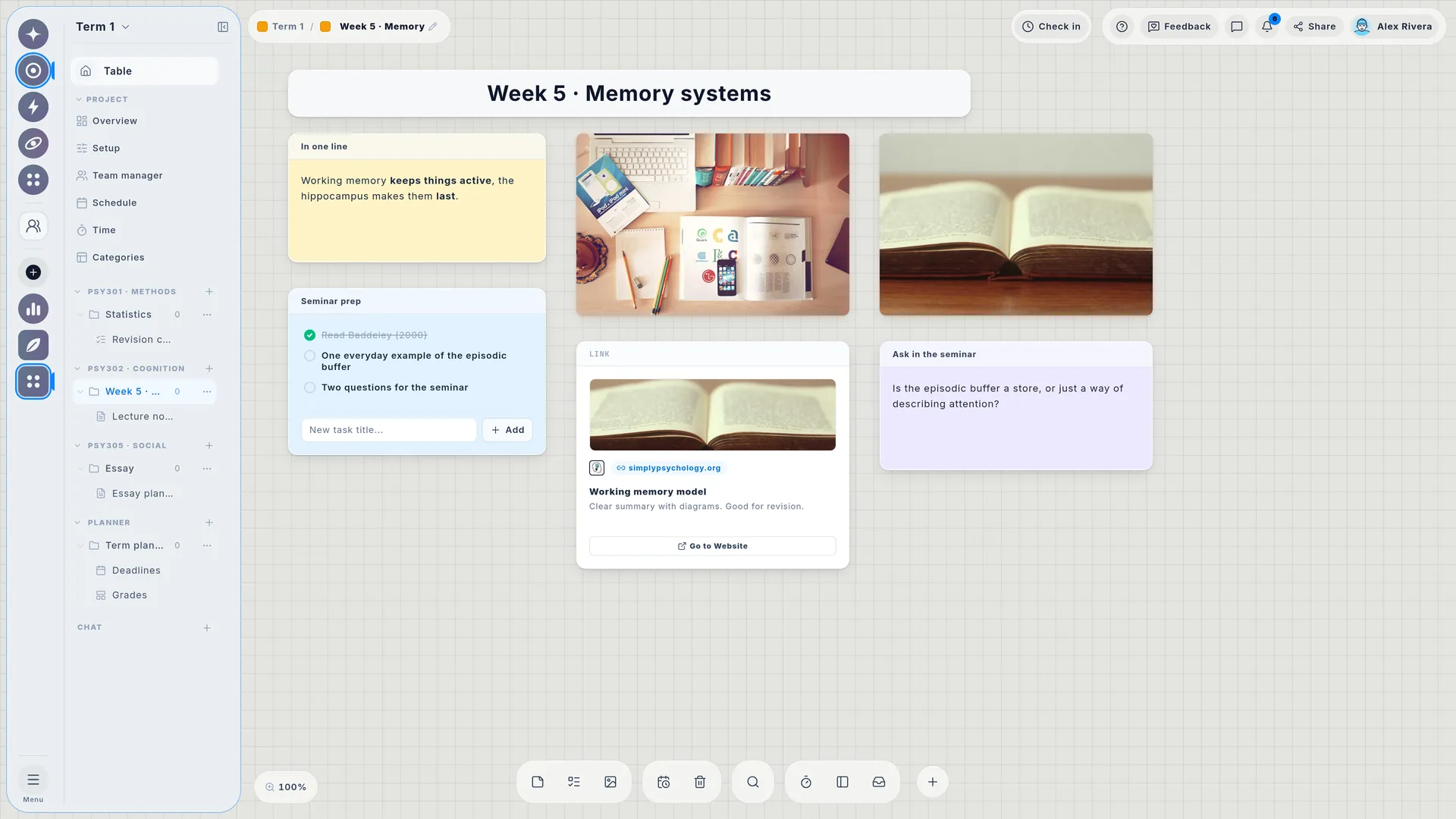
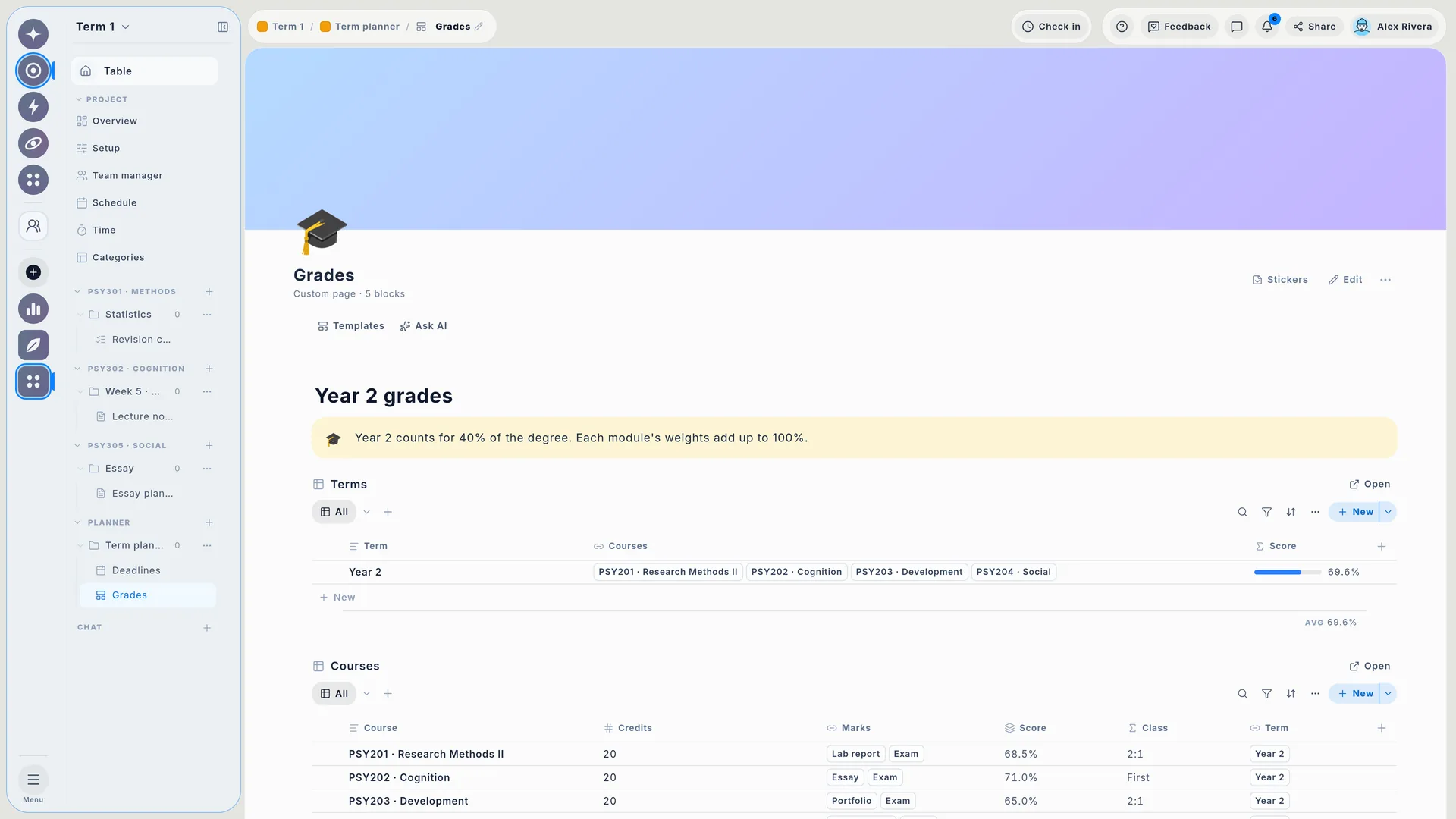
The Wailyspace Table in light mode on a stone canvas: a student's Table, with a desk by the window and the campus pinned to it.
Light · Sky
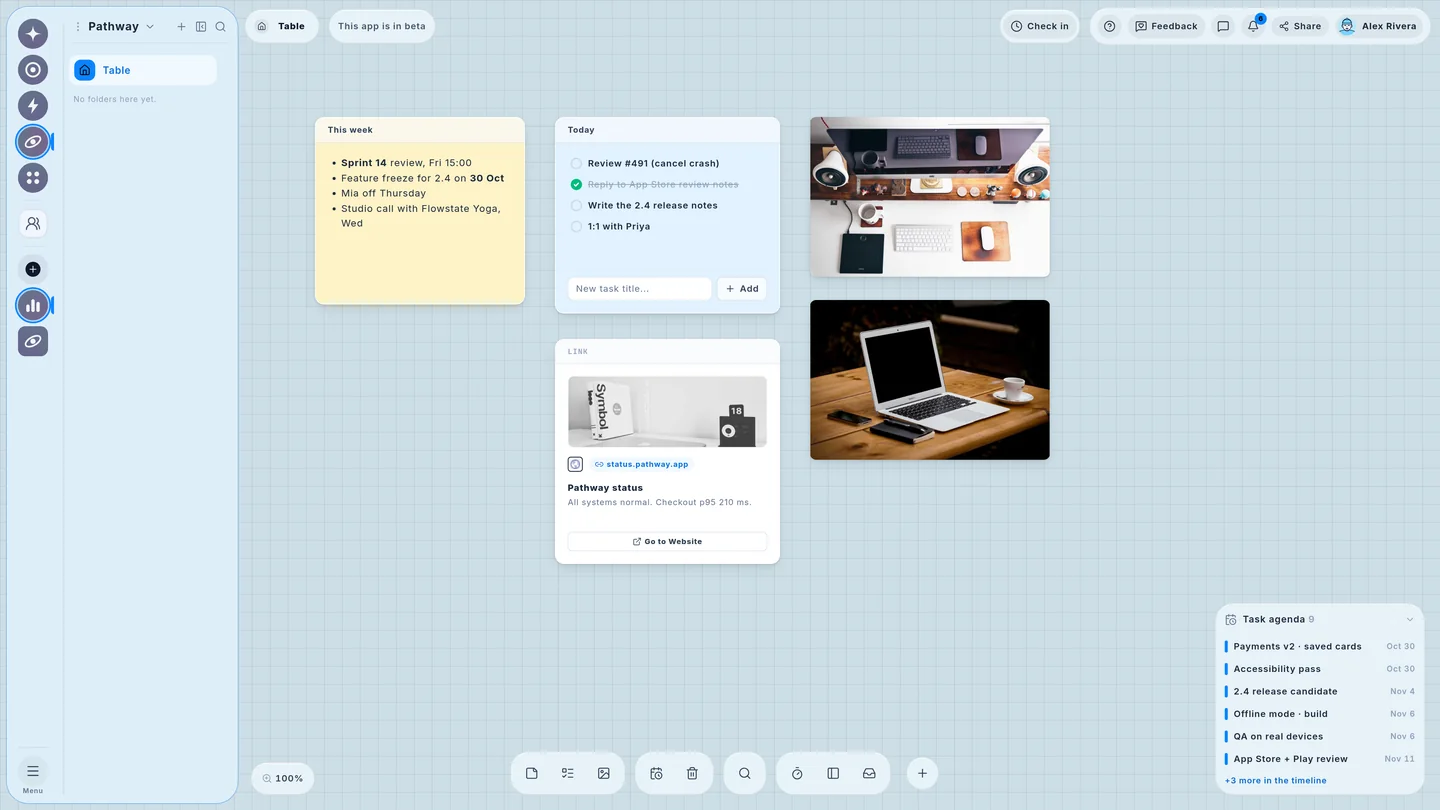
The Wailyspace Table in light mode on a sky canvas: a product team's Table, with the team desk and a laptop pinned to it.
Light · Lilac
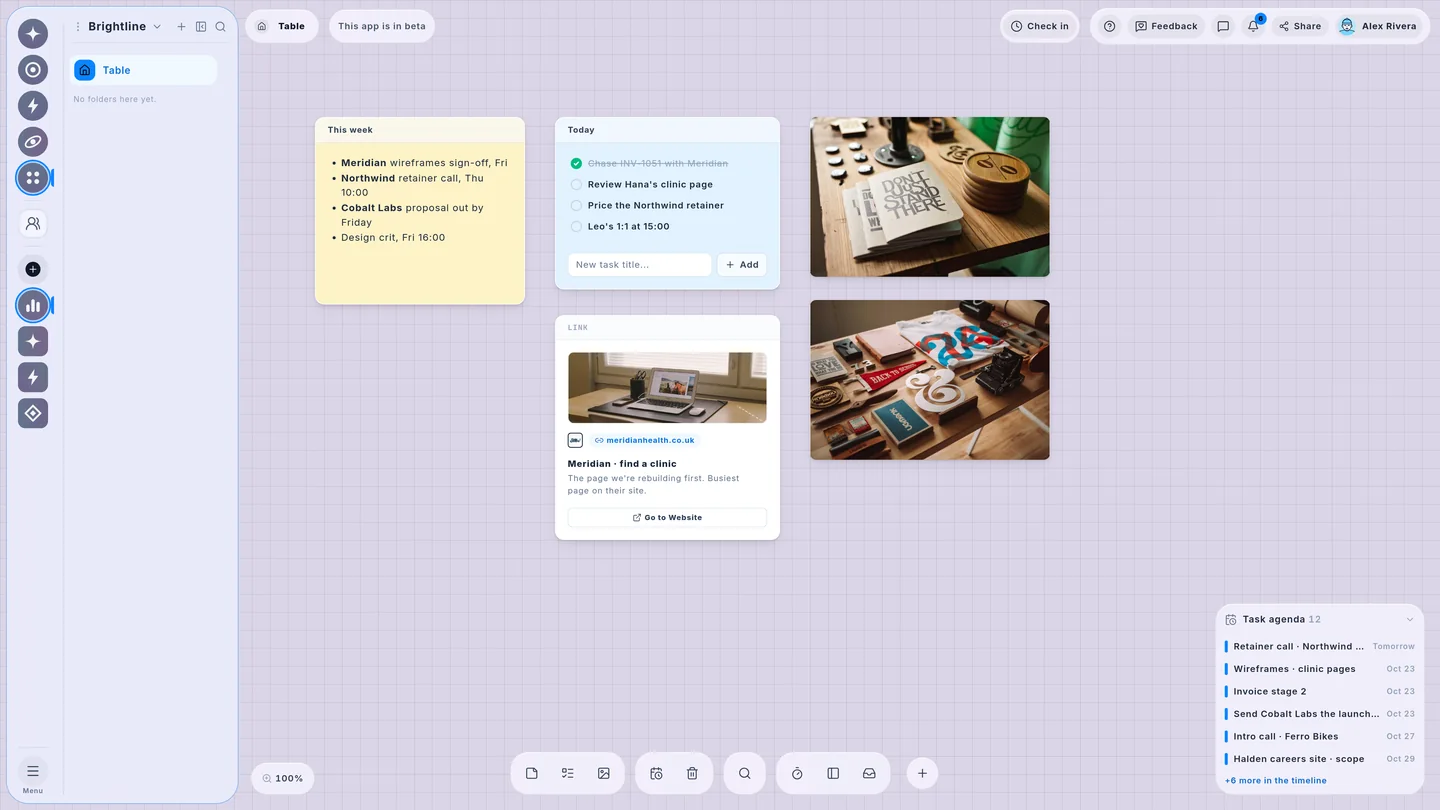
The Wailyspace Table in light mode on a lilac canvas: an agency's Table, with a design desk and a brand pack pinned to it.
Light · Peach
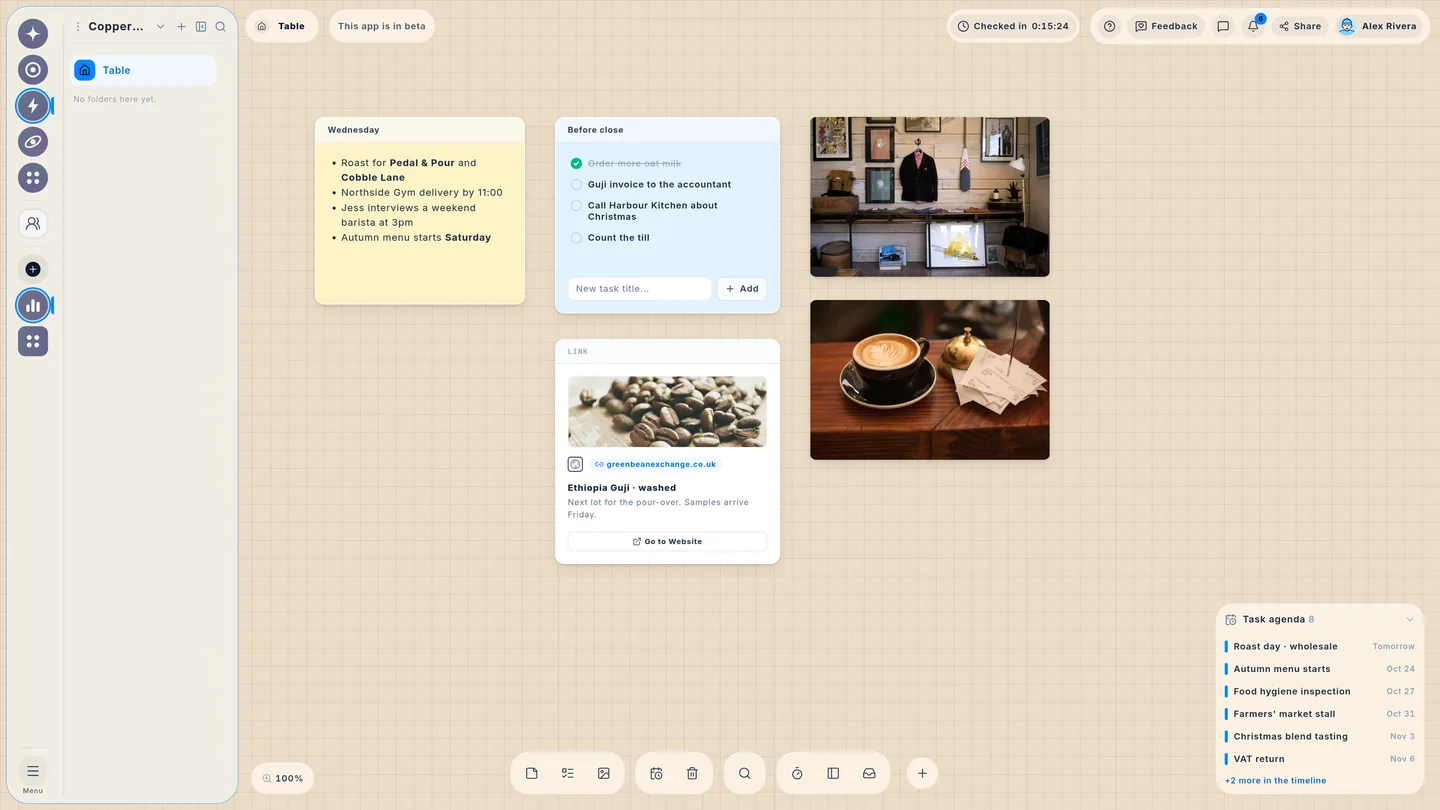
The Wailyspace Table in light mode on a peach canvas: a café's Table, with the shop and a flat white pinned to it.
Light · Sage
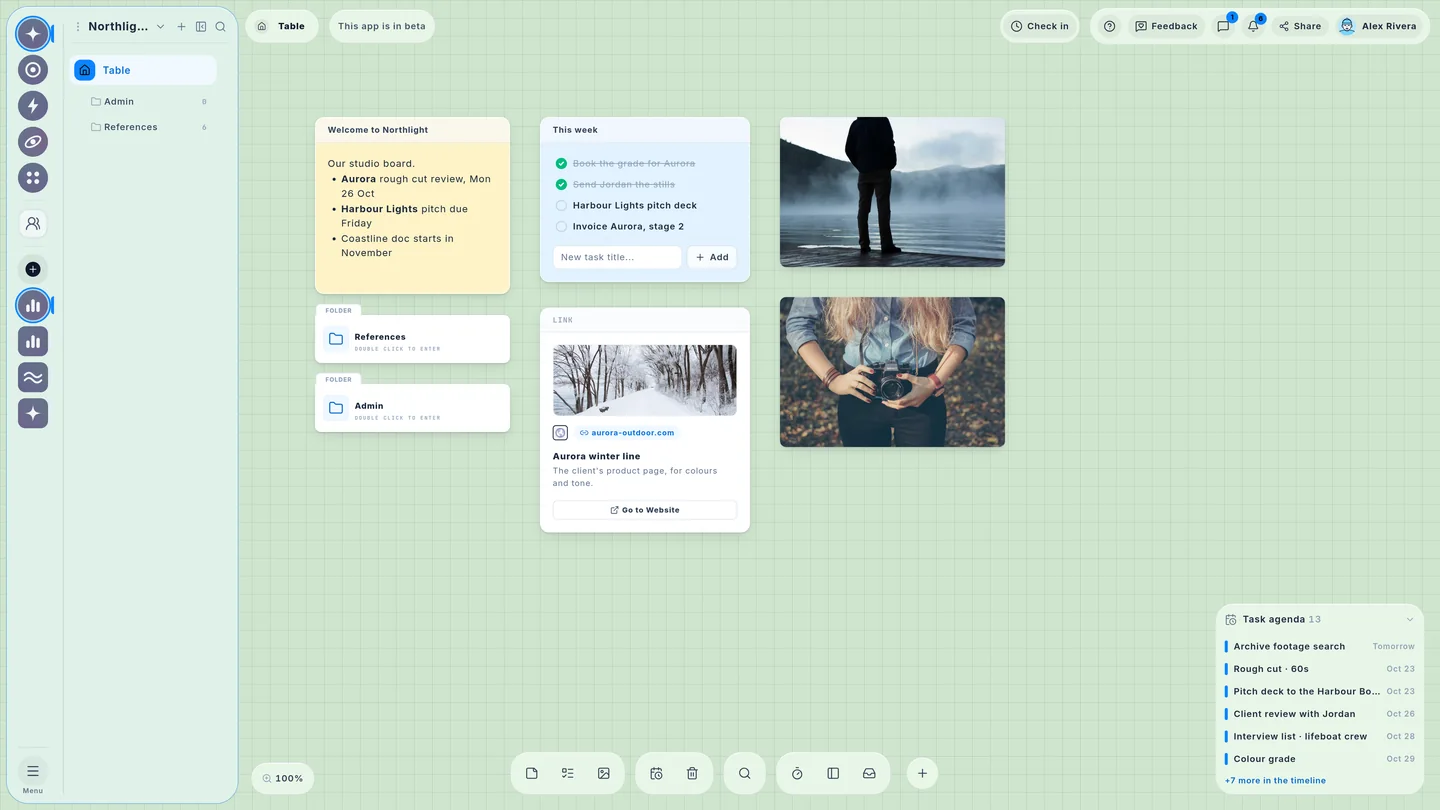
The Wailyspace Table in light mode on a sage canvas: a film studio's Table, with a misty lake and a camera test pinned to it.
Dark · Graphite
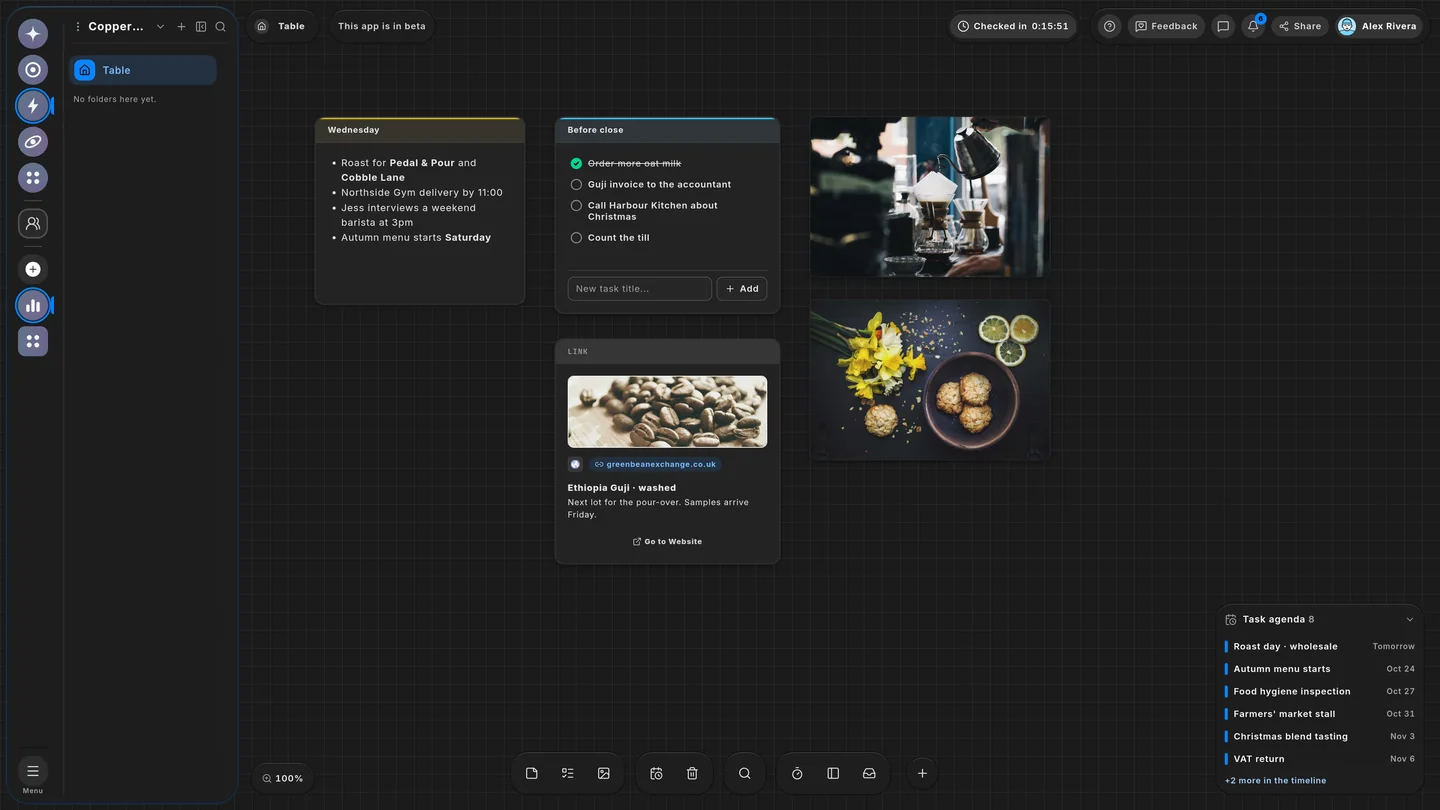
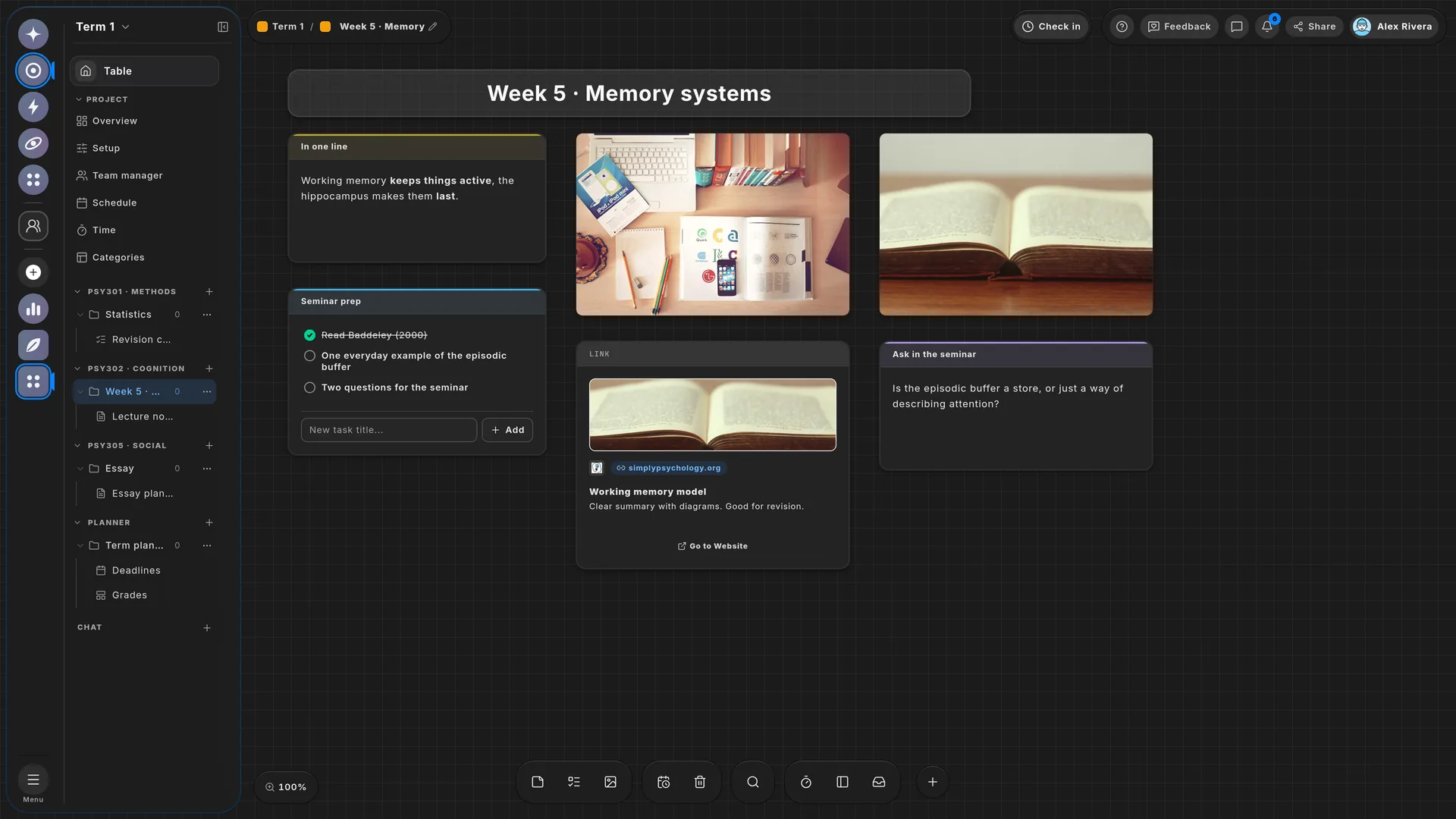
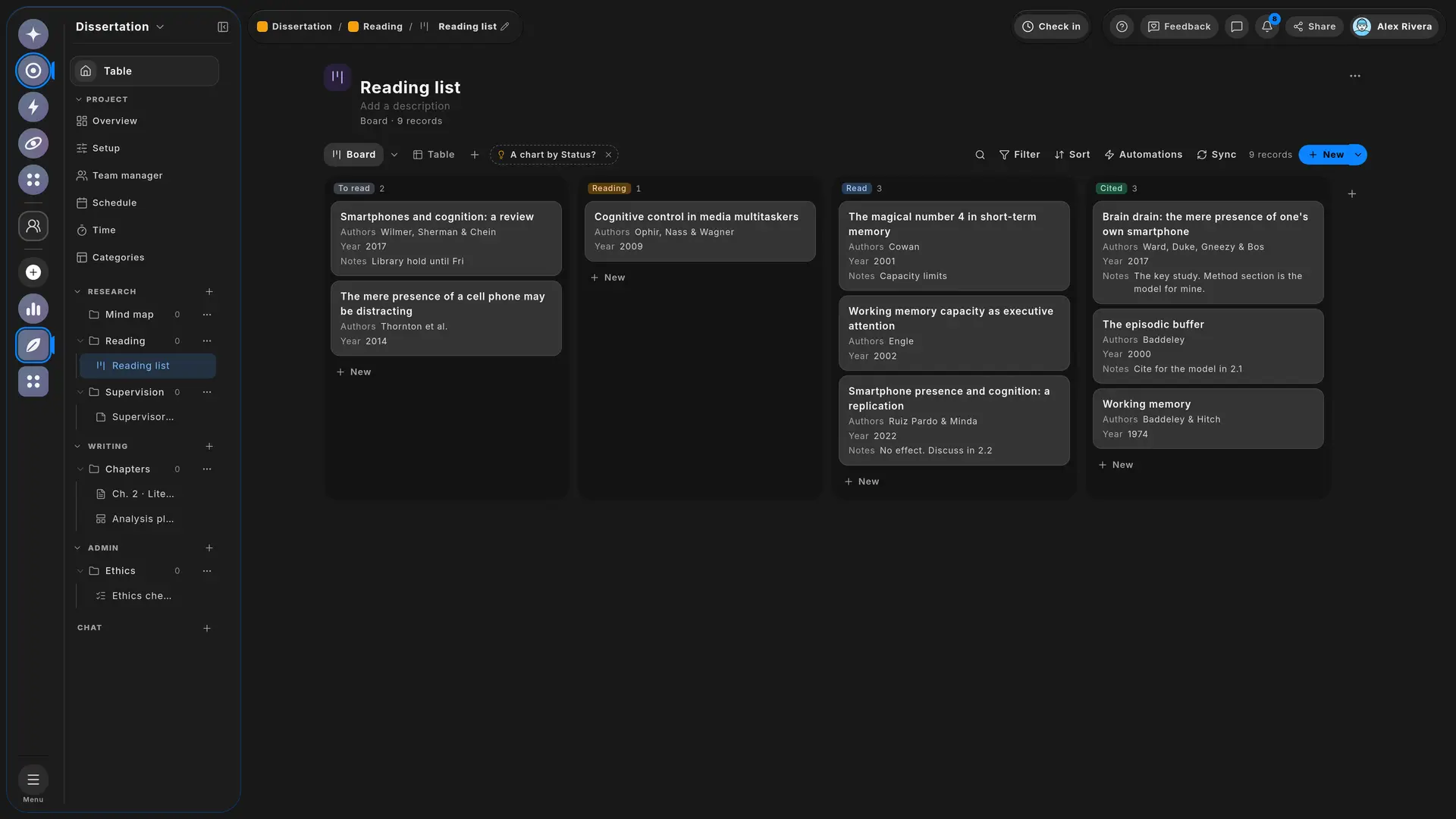
The Wailyspace Table in dark mode on a graphite canvas: a café's Table, with the pour-over bar and lemon shortbread pinned to it.
Dark · Navy
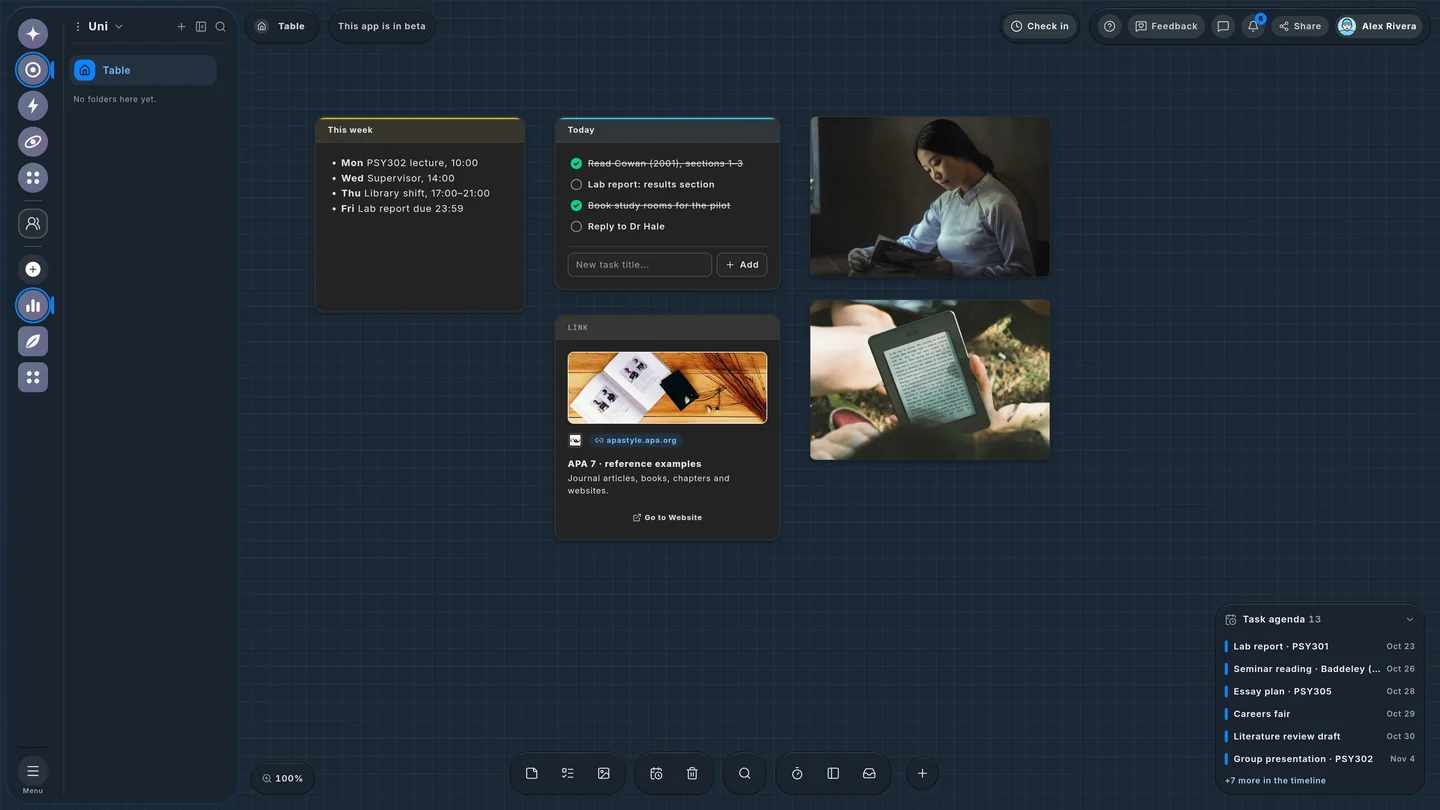
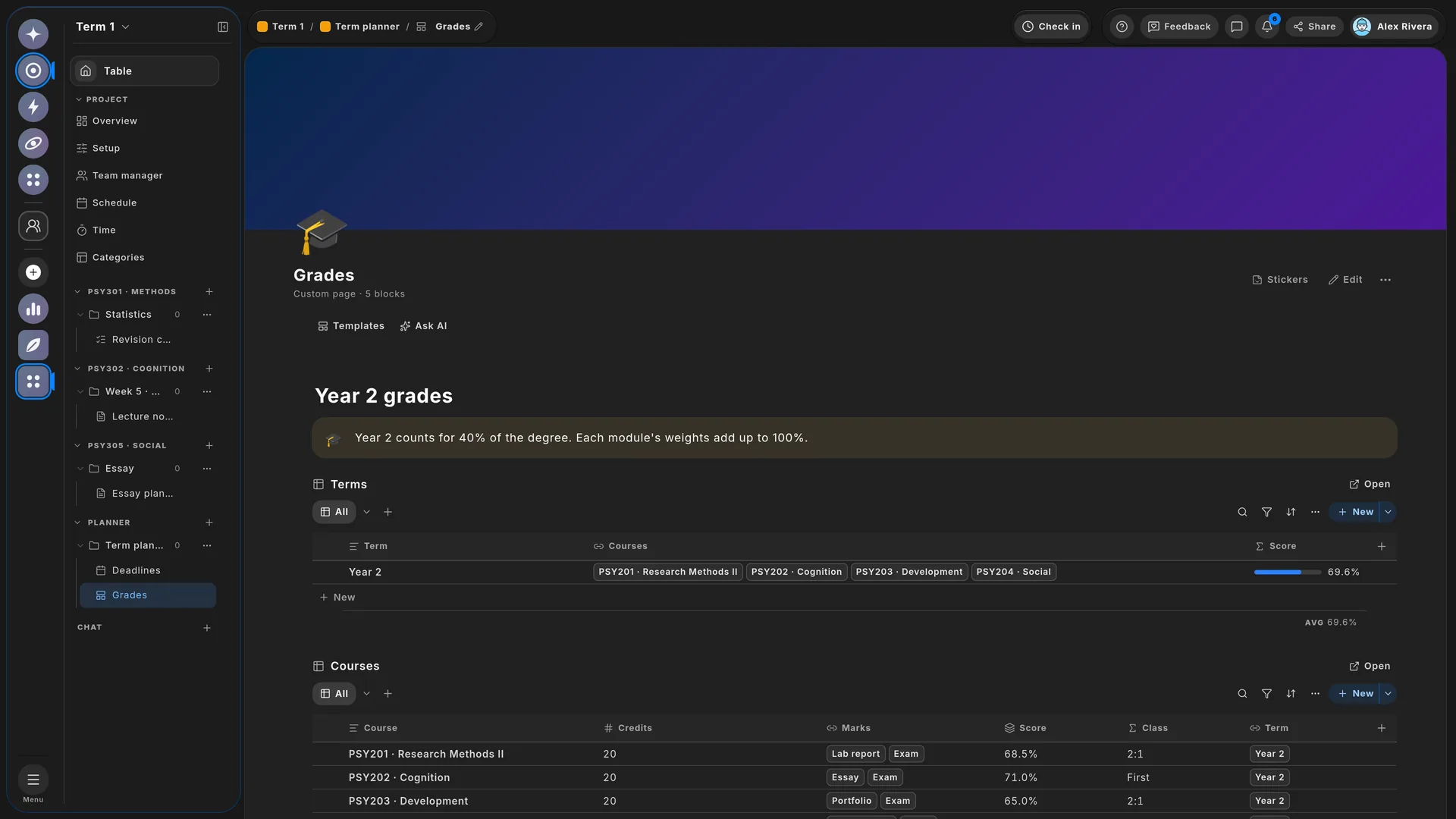
The Wailyspace Table in dark mode on a navy canvas: a student's Table, with a reading session and an e-reader pinned to it.
Dark · Plum
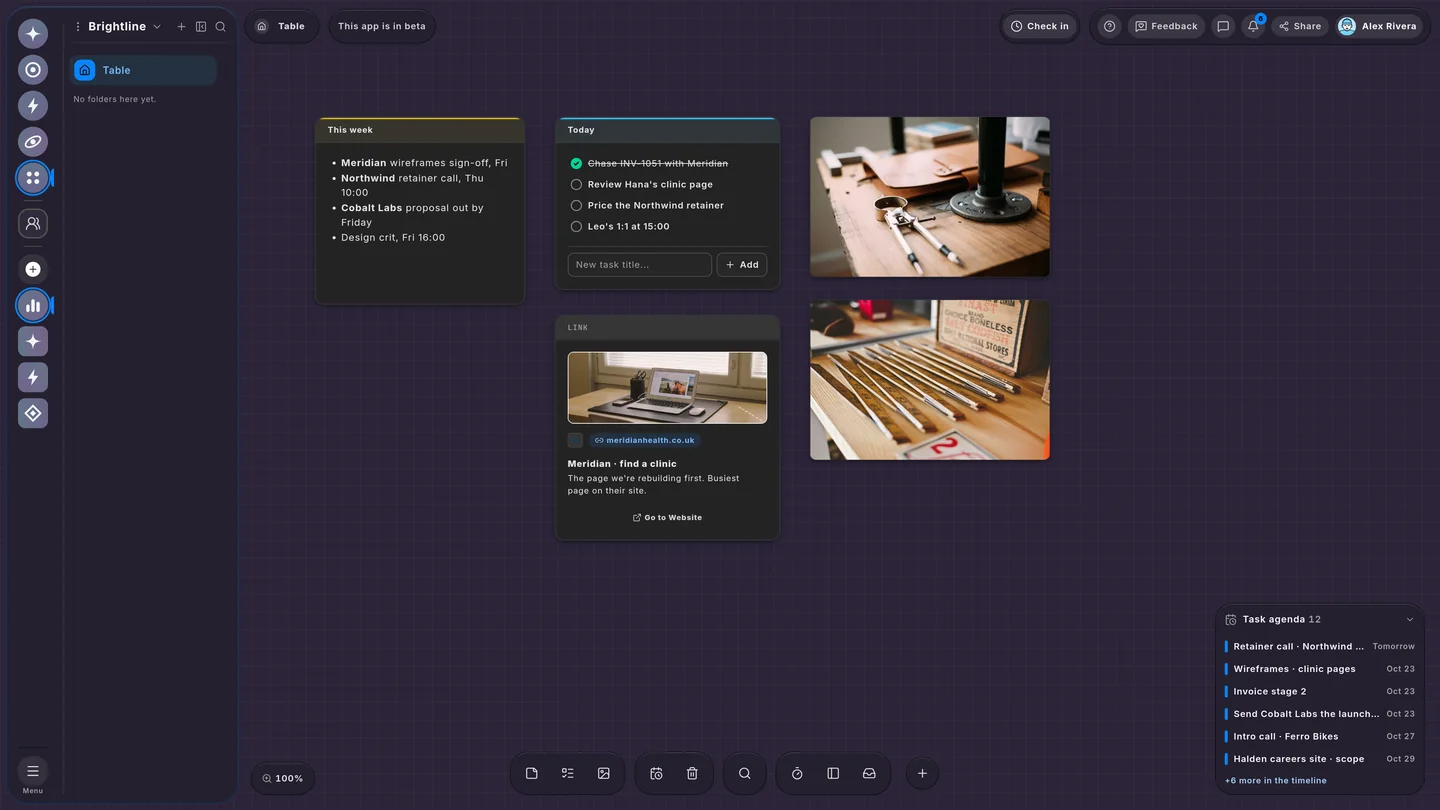
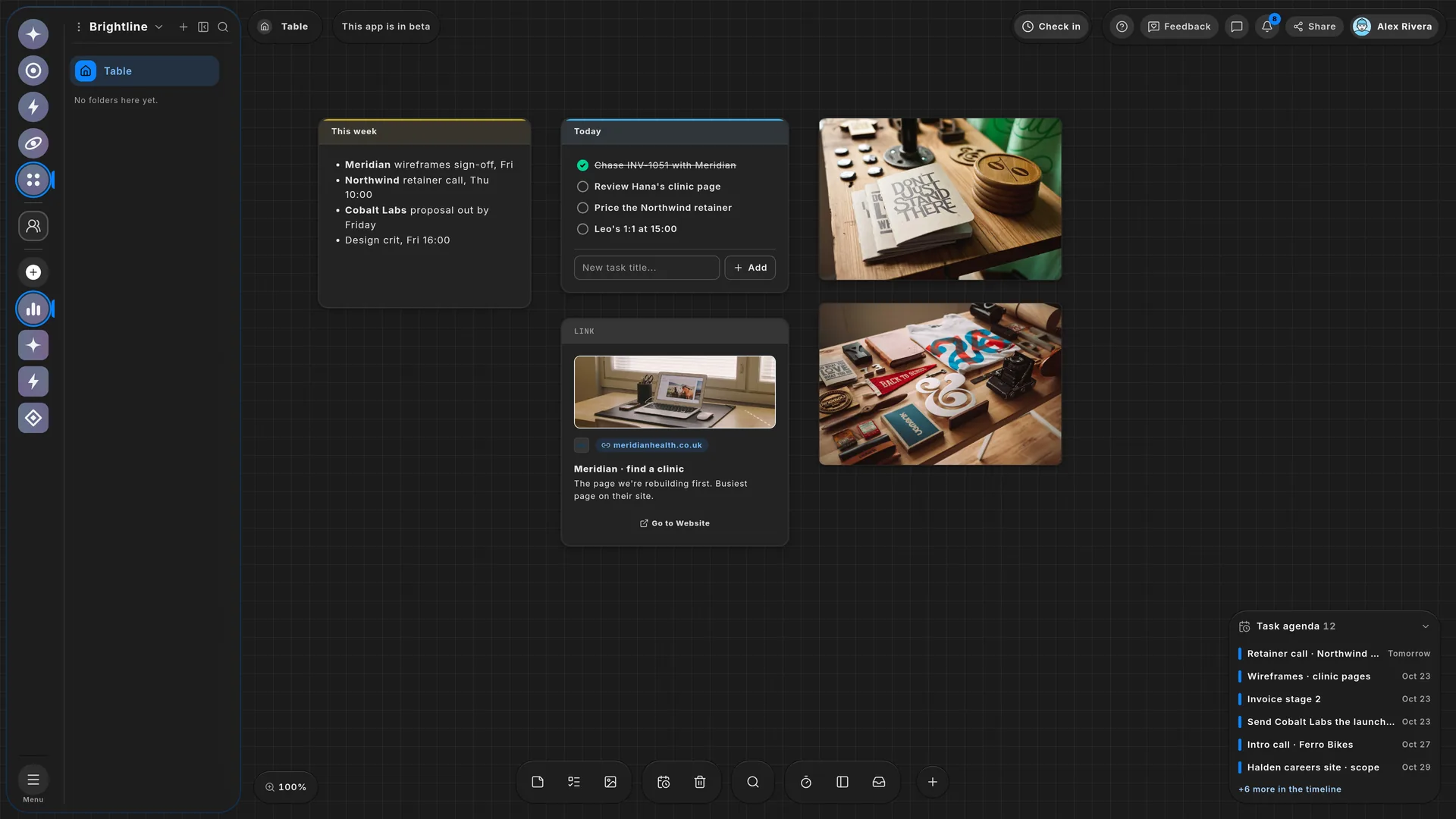
The Wailyspace Table in dark mode on a plum canvas: an agency's Table, with a workshop bench and pencils pinned to it.
Dark · Umber
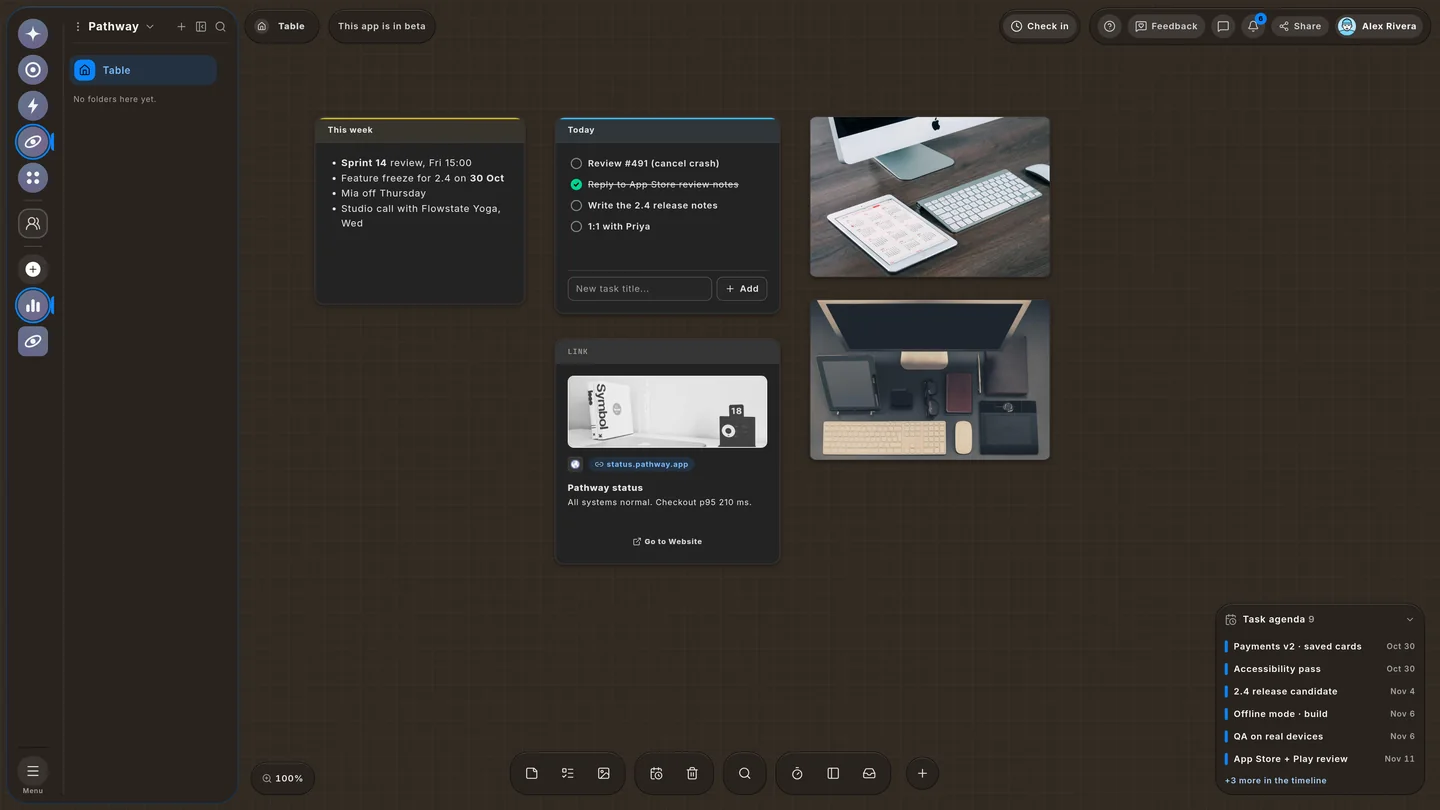
The Wailyspace Table in dark mode on a umber canvas: a product team's Table, with a release-day desk and test devices pinned to it.
Dark · Forest
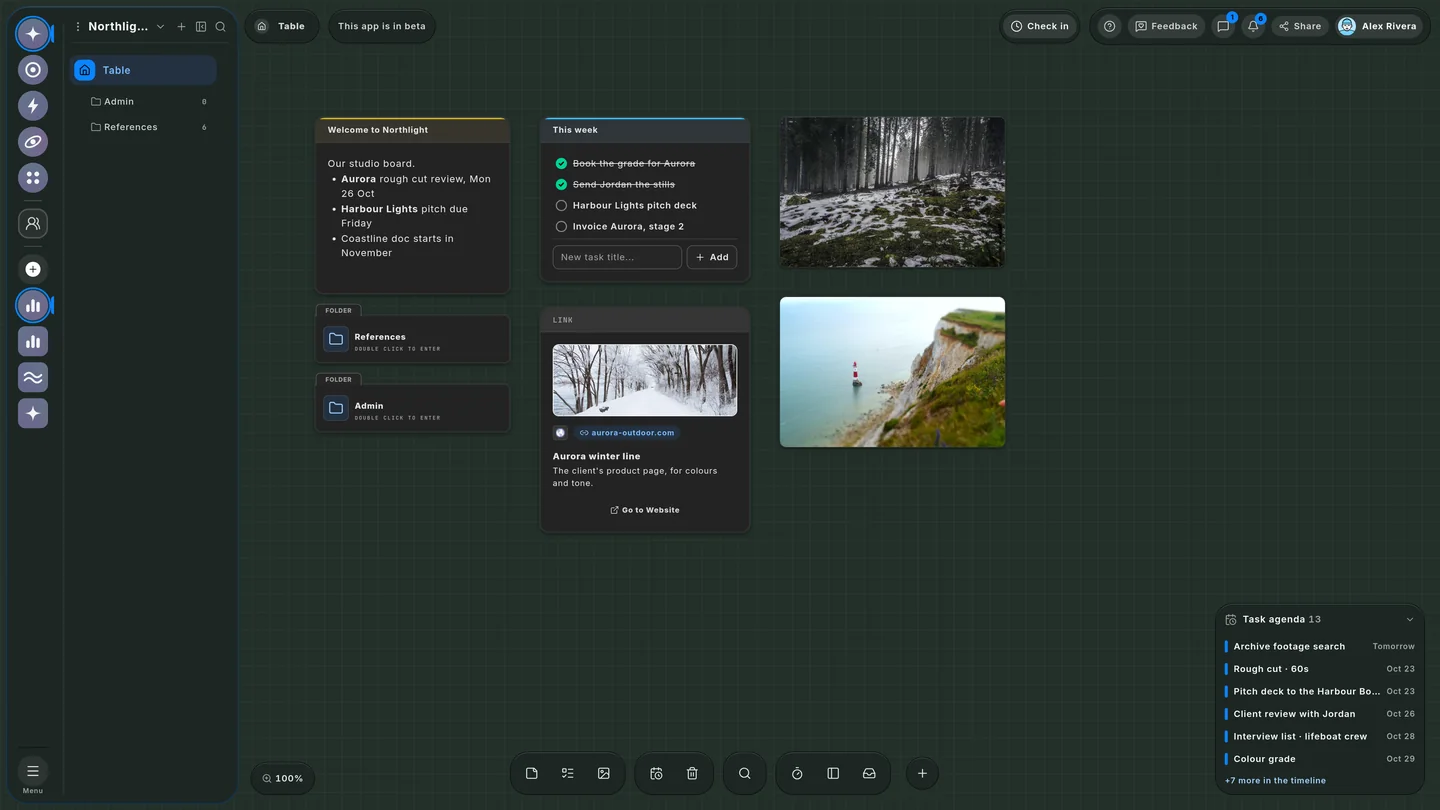
The Wailyspace Table in dark mode on a forest canvas: a film studio's Table, with snowy pines and a lighthouse pinned to it.

Drag a card, pick a colour, or use the arrow keys

QUESTIONS

Common questions.

Quick answers about what Wailyspace is, who it's for and how it works.
Wailyspace is one app for all your work, alone or with a team. Each project has boards for ideas, pages for documents and spreadsheets, a calendar for deadlines, chat for your team, and time tracking. Pages can be documents, checklists, databases, sheets, galleries, trackers, dashboards or code. You can also start from ready-made templates.

Anyone with work to organise. Students plan their studies and track grades. Team leads see who has too much work. Creatives plan shoots. Business owners track money and orders. Agencies manage clients and invoices. Developers plan their work and write docs with code. If your work is spread across many apps, Wailyspace puts it in one place.

No. Wailyspace runs in the browser. Open app.wailyspace.com on a computer, tablet or phone and start a project.

Your work is saved on the device you use. Sign in with Google to back it up to your Google Drive and use it on all your devices.

Yes. You can share any page, folder or project by invite or by link. You choose if each person can view or comment.

When you sign up, you draw your own cartoon face. It shows next to your work, so people know who did what. You can also add stickers to pages. There are 229, like Done, tape, pins and weather.

Not yet. Wailyspace is in beta, so it changes often. Use the Feedback or Report a problem button in the app to talk to the team.

Start your next project in Wailyspace.

Make a project, invite your team and start. It takes one minute, and there is nothing to install.