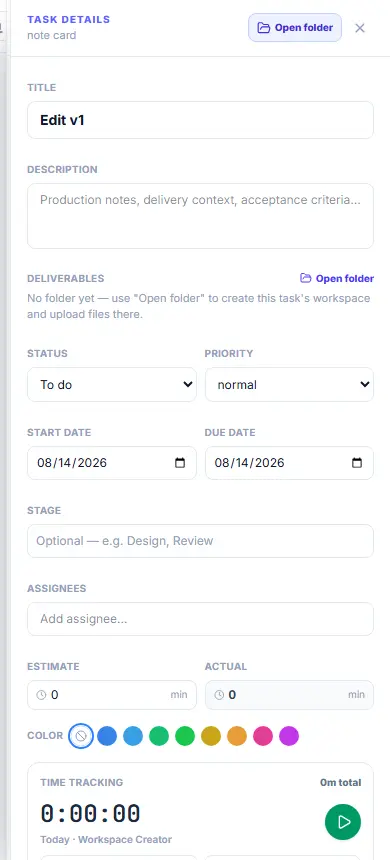
Tasks are calendar objects: schedule them, track time on them, review and deliver them. They never clutter your boards — each task gets its own workspace folder instead.
Create a task on a specific day
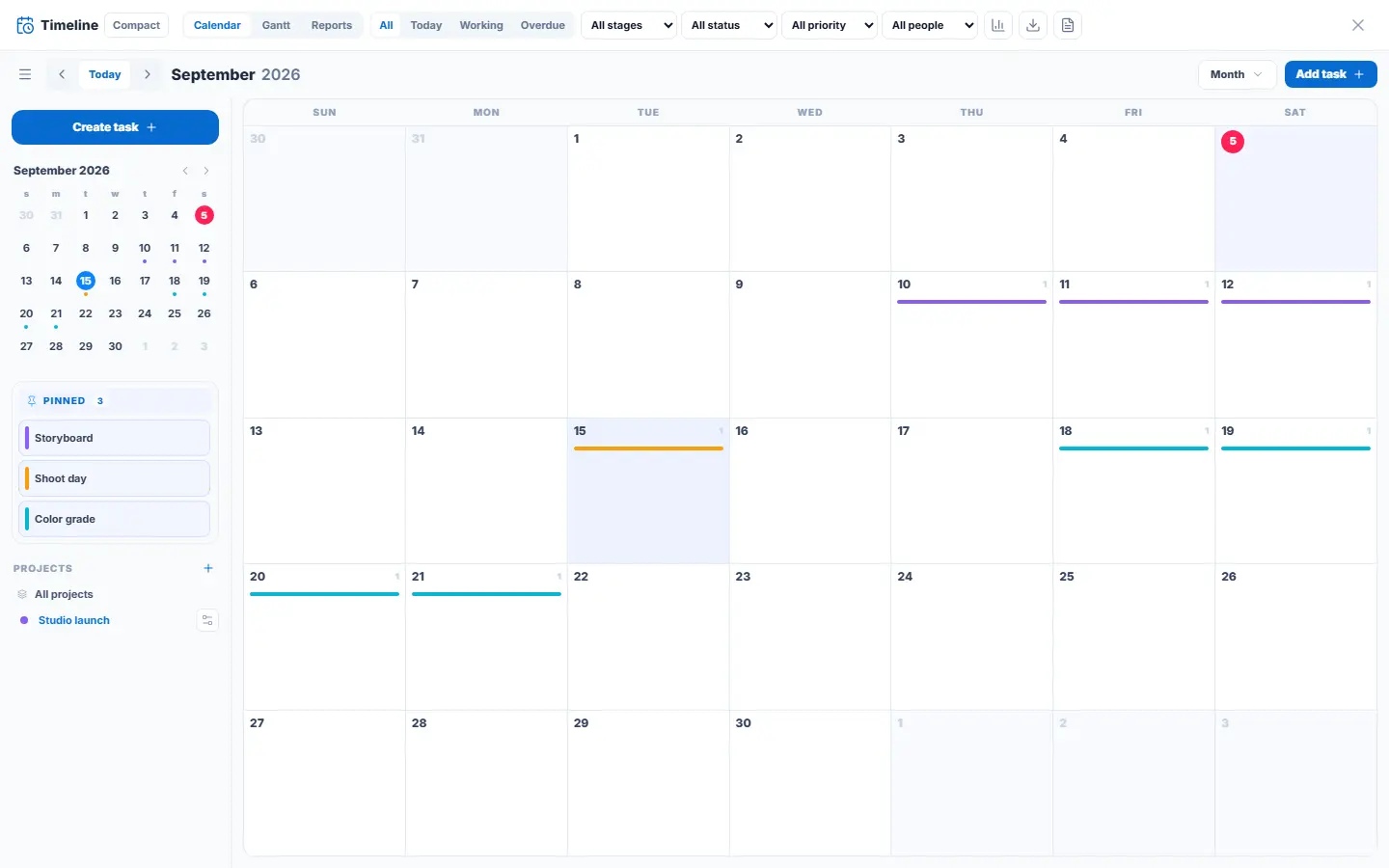
- Click a day in the big grid or the mini-calendar — it highlights with a ring so you know it is selected.
- Press "Create task" in the navigator rail or "Add task" in the full calendar’s top bar to start a task on the selected day and project.
Reschedule by dragging
- Drag a task bar to another day to move it.
- In Week/Day view, drop it on an hour slot to give it a time, or on the all-day lane to clear the time.
- Made a mistake? Ctrl+Z undoes any calendar move; Ctrl+Shift+Z redoes it.
The rail: Pinned tasks
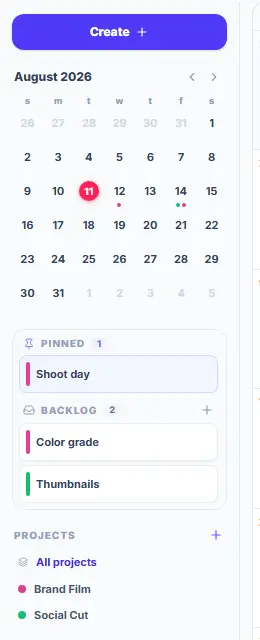
- Drop a SCHEDULED task on the rail to pin it there as a shortcut — it keeps its date and stays on the calendar.
- The × on a pinned task unpins it (never unschedules). Pins are personal — teammates have their own.
The quick view
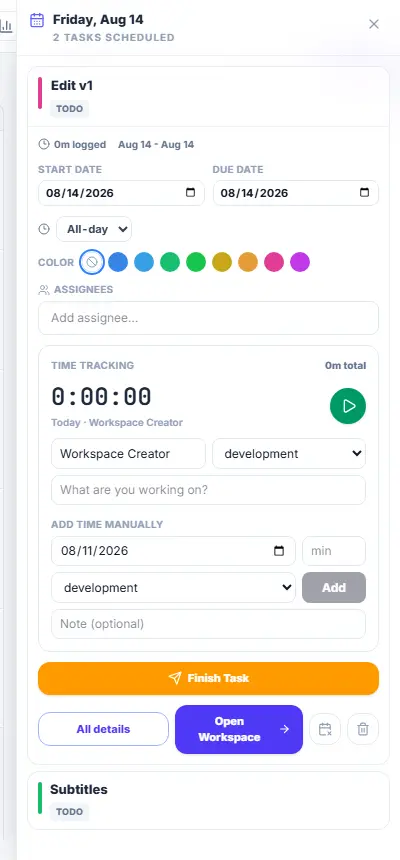
- Click any task to open its drawer. Click the task’s name to rename it right there.
- Set Start/Due dates, the time of day, color and assignees.
- The timer is per person: Play starts your session, Stop closes it; you can also add time manually with a note.
- "Finish Task" hands it in for review and locks its folder; a manager then approves or requests changes here.
- The calendar-x button clears the task’s dates; the trash button deletes it (recoverable).
All details — the full task system
- Press "All details" in the drawer for everything: description, priority, stage, estimate vs actual time, progress, subtasks, and dependencies/blockers.
- "Open Workspace" (or "Open folder") enters the task’s own board for briefs, files and deliverables — it lives under the task’s project.