Everything on a board is a card. Cards drag, resize, connect, colorize, lock and comment.
Selecting and arranging
- Click a card to select it — a floating toolbar appears above it (lock, color, delete and more).
- Drag on empty canvas to rubber-band select several cards; arrow keys nudge the selection.
- Press [ to send a card behind others, ] to bring it forward.
- Columns hold cards as ordered lists — drag cards in and out of them.
Align, distribute and tidy
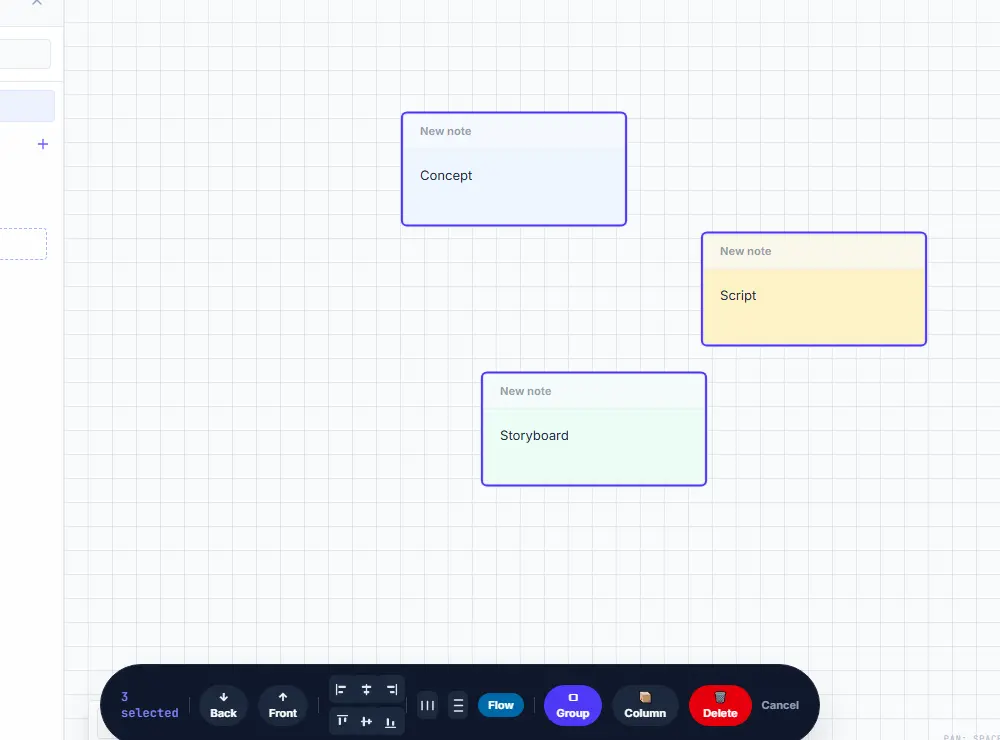
- Select two or more cards — drag a box around them, Ctrl+Shift+click to add one by one, or press A to select the whole board.
- The dark action bar appears at the bottom: six align buttons (left / horizontal-centre / right · top / vertical-centre / bottom) and, with 3+, distribute horizontally or vertically.
- "Flow" aligns a CONNECTED chain of cards in their wire order — perfect for pipelines.
- "Group" wraps the selection into a group box; "Column" stacks it into a column; Back/Front control layering; Delete trashes it all.
- Fast path: double-click the small connector handle on a card’s left/right edge to flow-align its whole chain from that card — the three dots choose the anchor (top / centre / bottom).
Zoom, Clean Grid and moving around
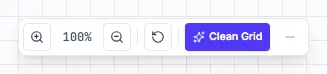
- The canvas controls start minimized as a small % pill in the bottom-left corner — click it to expand them, and the – button tucks them away again.
- Expanded, the bar zooms in/out (or pinch / Cmd+scroll on Mac, plain scroll on Windows); the % resets to 100.
- "Clean Grid" auto-arranges every card on the board into a neat grid — the fastest way to tidy a messy brainstorm.
- While dragging cards, smart snap guides (Illustrator-style lines) help you line things up by edge or centre — configure them in Settings → Preferences.
The bottom dock
- The pill dock at the bottom centre holds shortcuts to your favourite tools — click or drag them onto the canvas, exactly like the toolbar.
- Press the + button to customize it: pick any card tool or panel (Timeline, Workload, Trash, Present, Settings). Your choice is remembered on this device.
- The stopwatch opens the compact TRACKER: start, pause and stop time on any task — sessions log to the task exactly like the task panel.
- Use the left toolbar’s Menu → Show on the toolbar to enable Timeline, Workload, Hours or Trash on the rail.
Showing and hiding panels
- Boards sidebar: choose "Boards" in the left toolbar or bottom dock to toggle it; the × inside closes it.
- Calendar rail: the panel icon in the calendar’s top bar collapses or opens it.
- Gantt outline: the panel icon in the timeline toolbar hides the left task-name column for a full-width chart.
- Panels keep themselves organized: on a narrow window the sidebar, rail and outline hide automatically and come back when there is room — your manual choice always wins.
Nothing is lost — the Trash
- Deleting a card or board sends it to the Trash. Open "Trash" from the bottom dock, or enable its rail button through Menu → Show on the toolbar.
- Open the Trash to restore anything. Auto-cleanup timing is configurable inside it.
- You can pause the "are you sure?" prompt in Settings → Preferences → Delete confirmation.
Make the toolbar yours
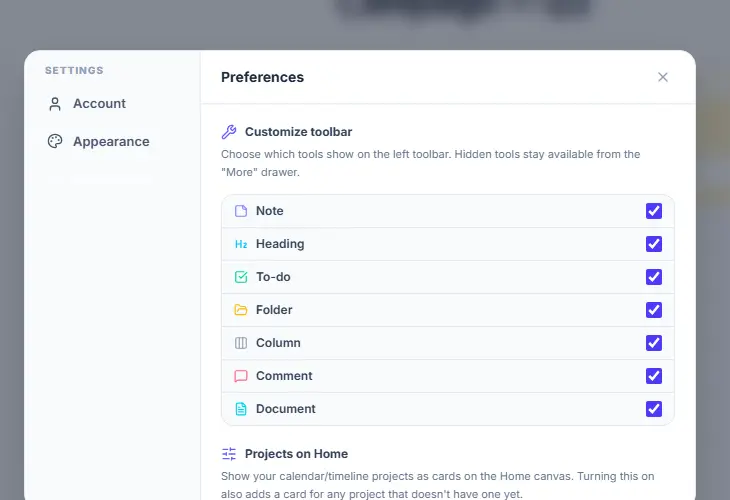
- Open the left toolbar’s Menu → "Settings & Preferences" → Preferences tab.
- "Customize toolbar" chooses which tools show on the left bar. The "More" drawer also offers media and diagram shapes.
- "Show project cards on Home" places a card on the Home canvas for each project, if you like working that way.